
Set Up VPN on a Huawei 5G Router
Some devices — like PlayStation, Xbox, and other consoles — don't support a VPN directly. A handy workaround is to run the VPN on your router, so every connected device uses it automatically.
Requirements: a Huawei router and your router admin login.
Set up the router
- In a browser, open your router's web GUI (your router's LAN IP, or
http://192.168.8.1/html/index.html) and sign in.
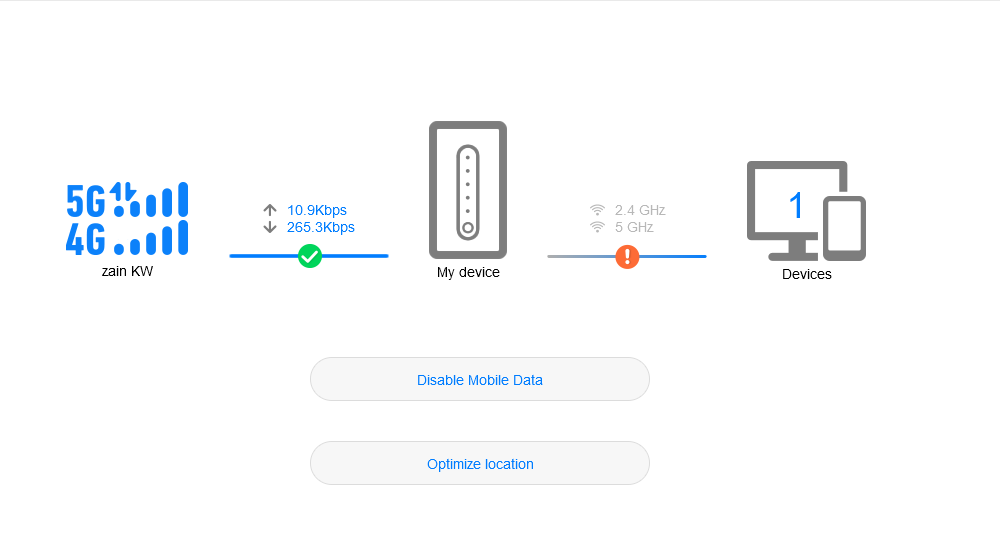
- Go to Advanced → Router and click VPN.

- Add your VPN credentials (from your account) using the fields below.
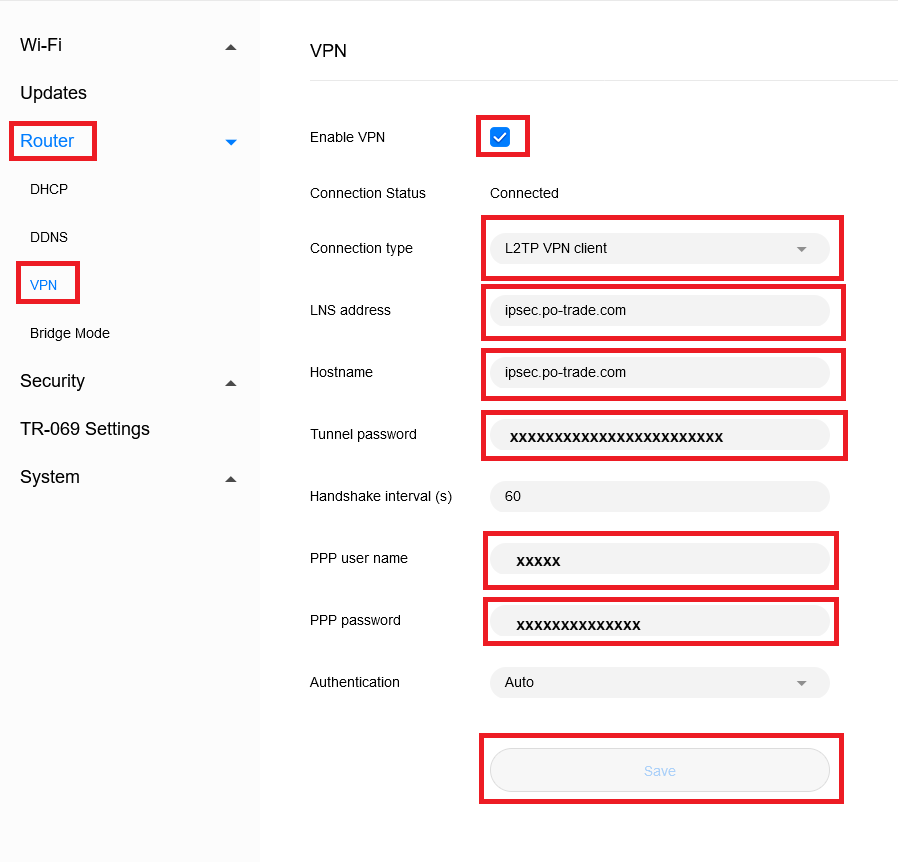
| Field | Value |
|---|---|
| Connection type | L2TP VPN client (recommended) |
| LNS address | ipsec.po-trade.com |
| Hostname | ipsec.po-trade.com |
| Tunnel password | your L2TP IPSec PSK key (from your VPN account) |
| PPP user name | your VPN username |
| PPP password | your VPN password |
- Enable the VPN and click Save.
Note: we recommend enabling the VPN only when you need it — when you're done, disable it, save, and carry on as usual.
How to find your VPN credentials
- Log in to your account.
- Open your IPSec VPN service (click View More).
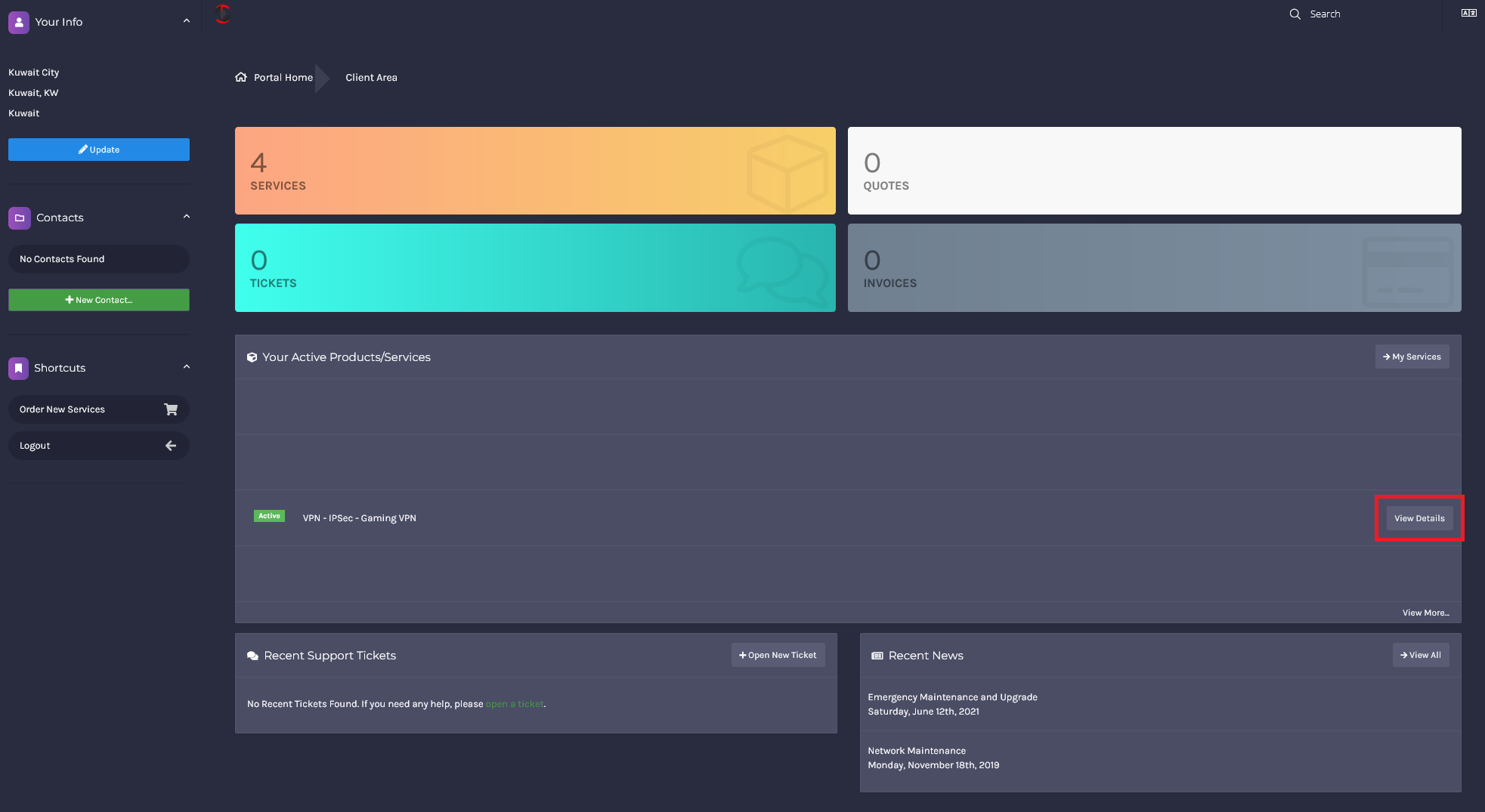
- Copy each value into the matching router field above.
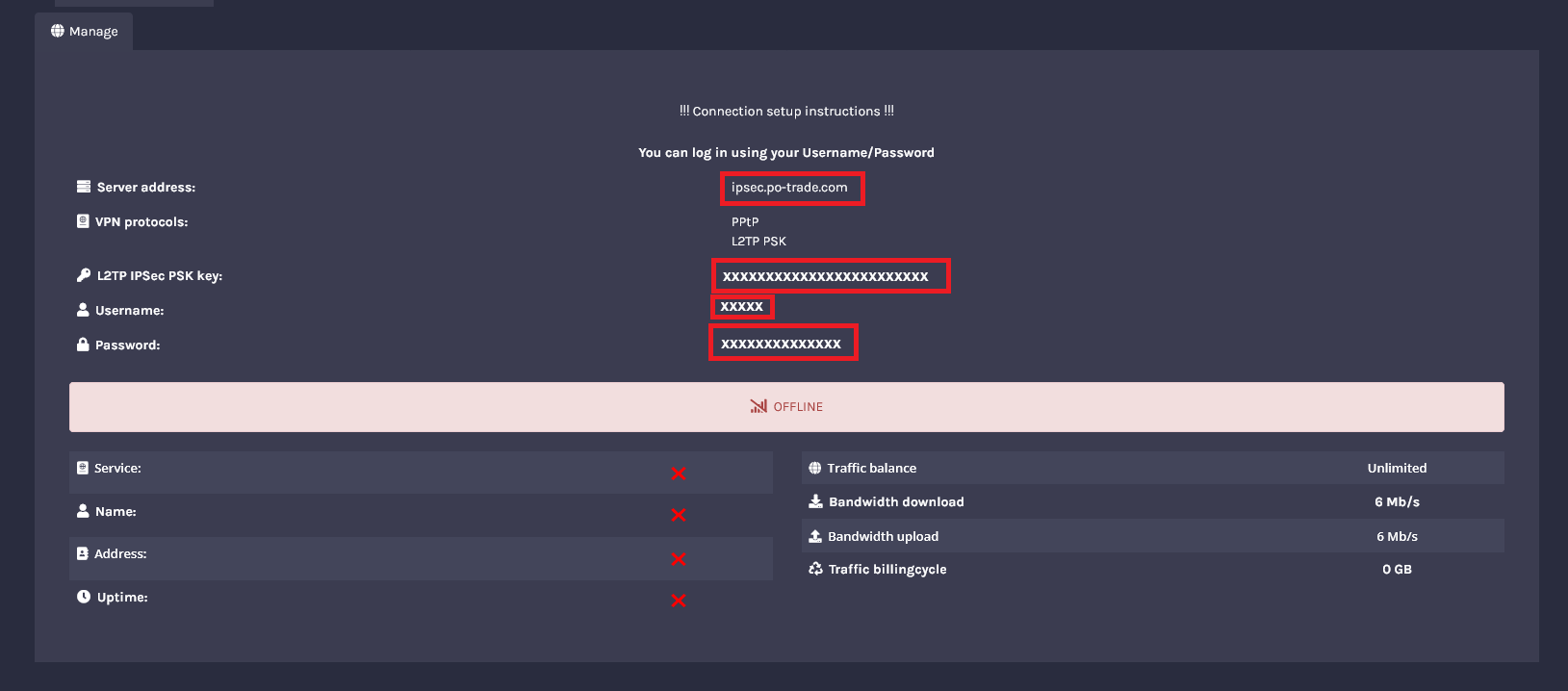
Important: about 90% of "router won't connect" issues come from accidental blank spaces added while copy-pasting. Paste each value into a plain text editor first to confirm there are no extra spaces.