Set Up a VPN Connection on Android
Setting up a VPN connection on Android takes just a few steps. (Menu names vary slightly by device.)
1. Get your VPN credentials
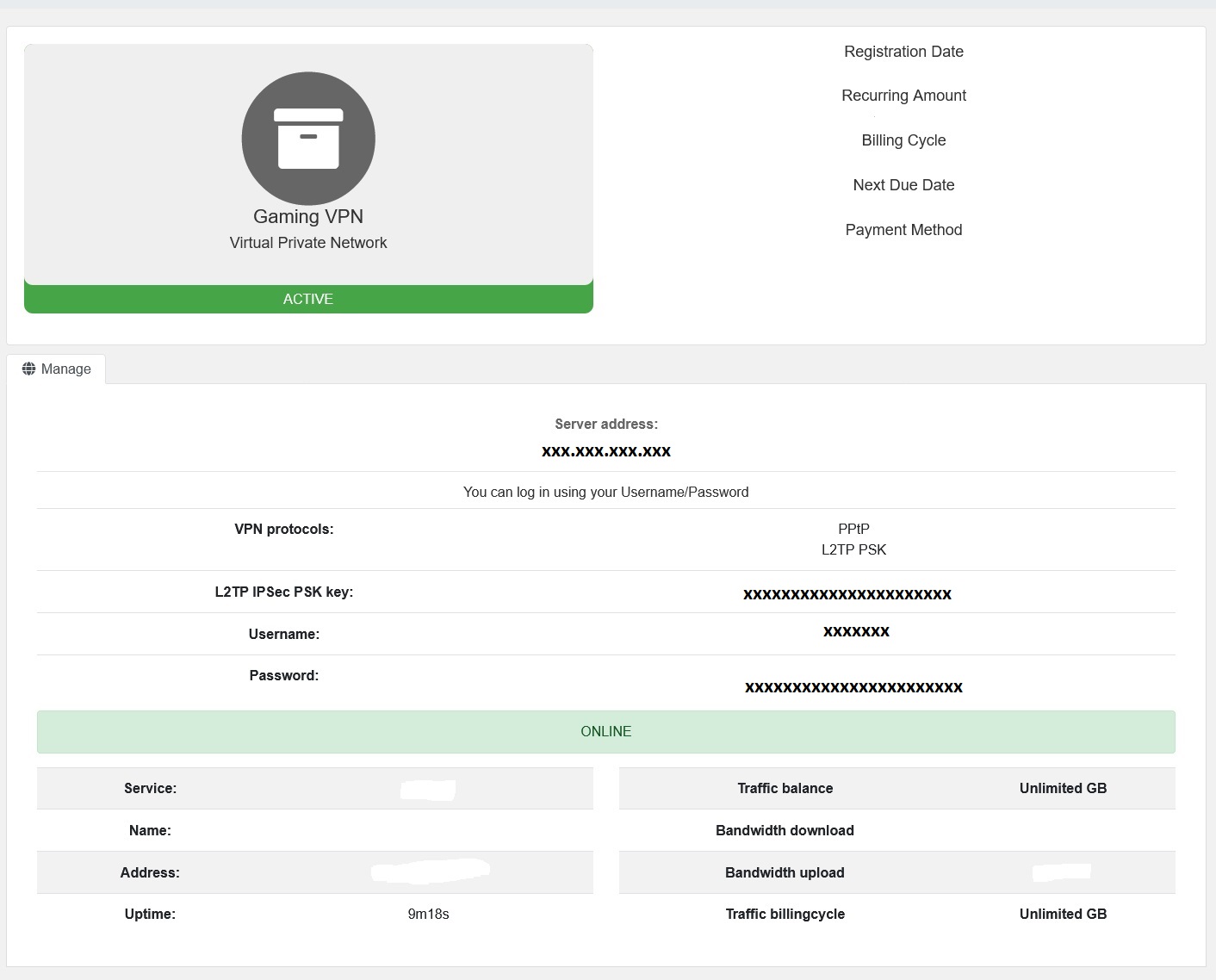
Log in to your account on our website and open your VPN service to see your username, password, server address, and the PSK key.
2. Add a VPN
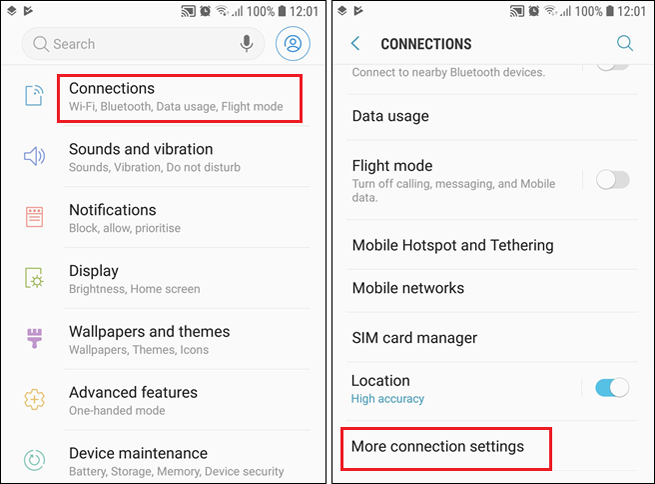
- Open your phone's Settings.
- Tap Connections, then More connection settings.
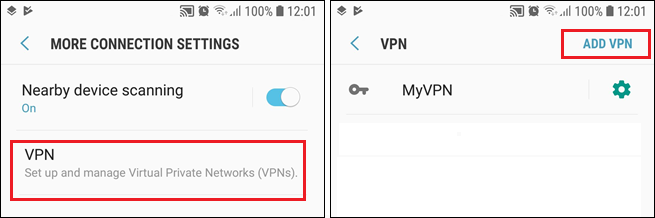
- Tap VPN, then Add VPN (or the + icon).
3. Enter the details
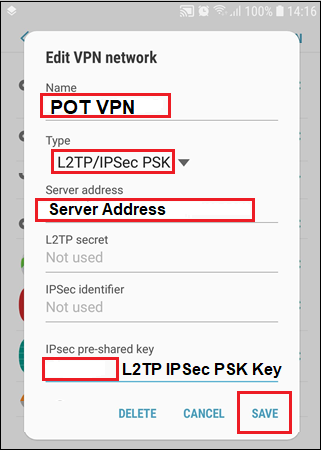
- Name: anything you like (e.g. POT VPN)
- Server address: your server address from Step 1
- Type: L2TP/IPsec PSK
Tap Save.
4. Connect
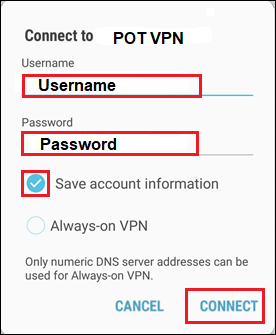
Enter your POT username and password (from Step 1), tick Save account information, then tap Connect.
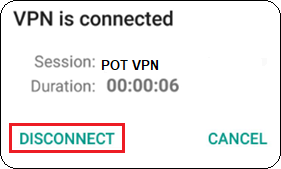
Disconnect
Tap your VPN profile name, then Disconnect.