
Control Your ARK Server with the ARKON RCON Tool
RCON (Remote Control) lets you manage your ARK server from your PC — view the console and chat, manage players, and save the world. The most common tool for this is ARKON (download).
Part 1 — Get your RCON details from the Game Panel
- Open the Game Panel and click your server.
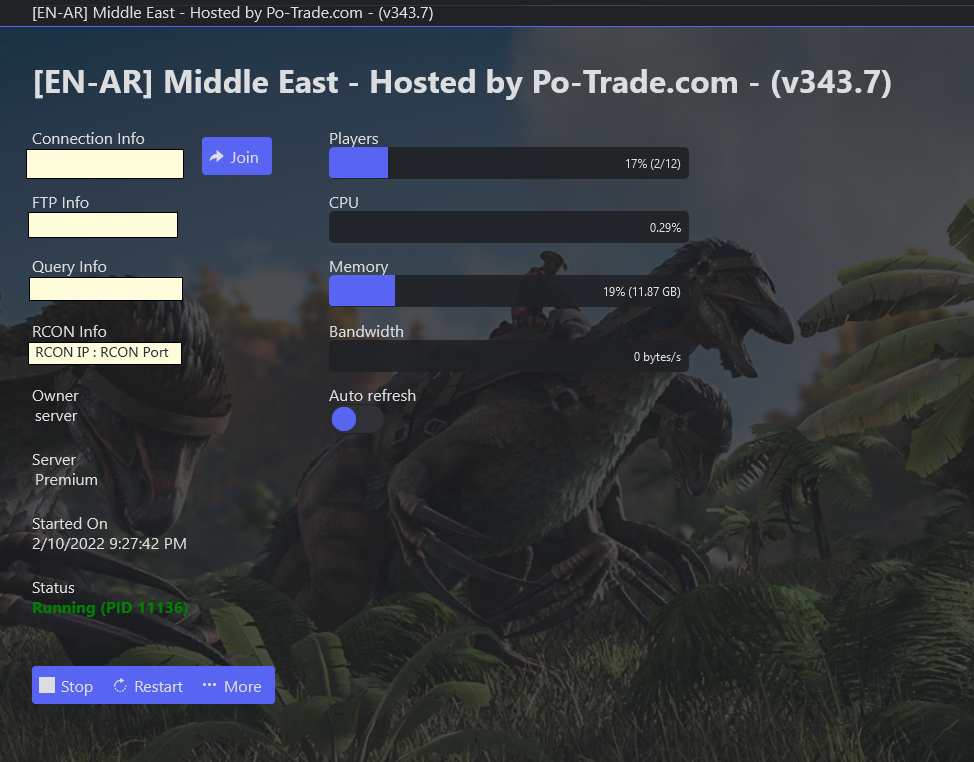
- In the RCON Info field, note your RCON IP and RCON Port.
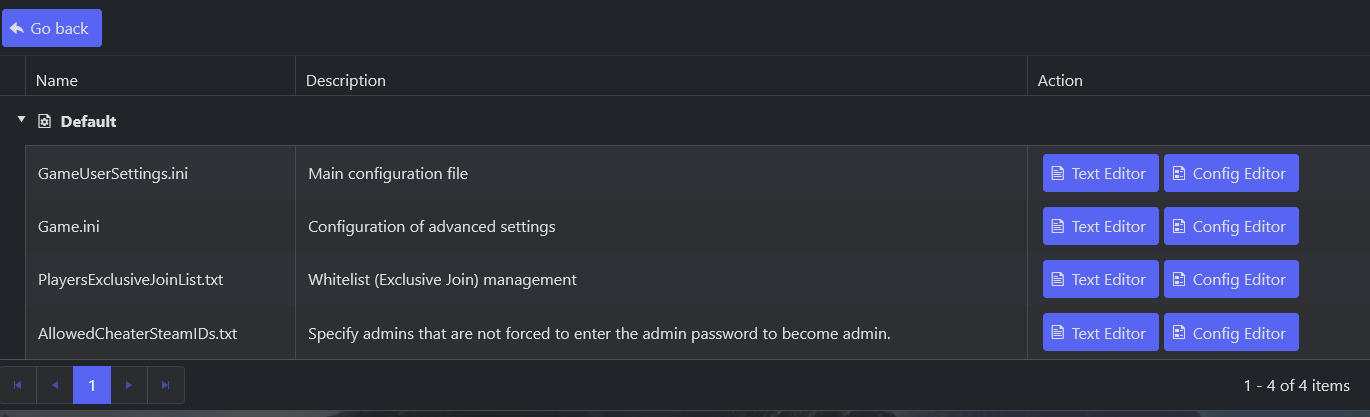
- In the side menu, open Configuration Files, then
GameUserSettings.ini→ Config Editor.
- Set a password in the Server Admin Password field.
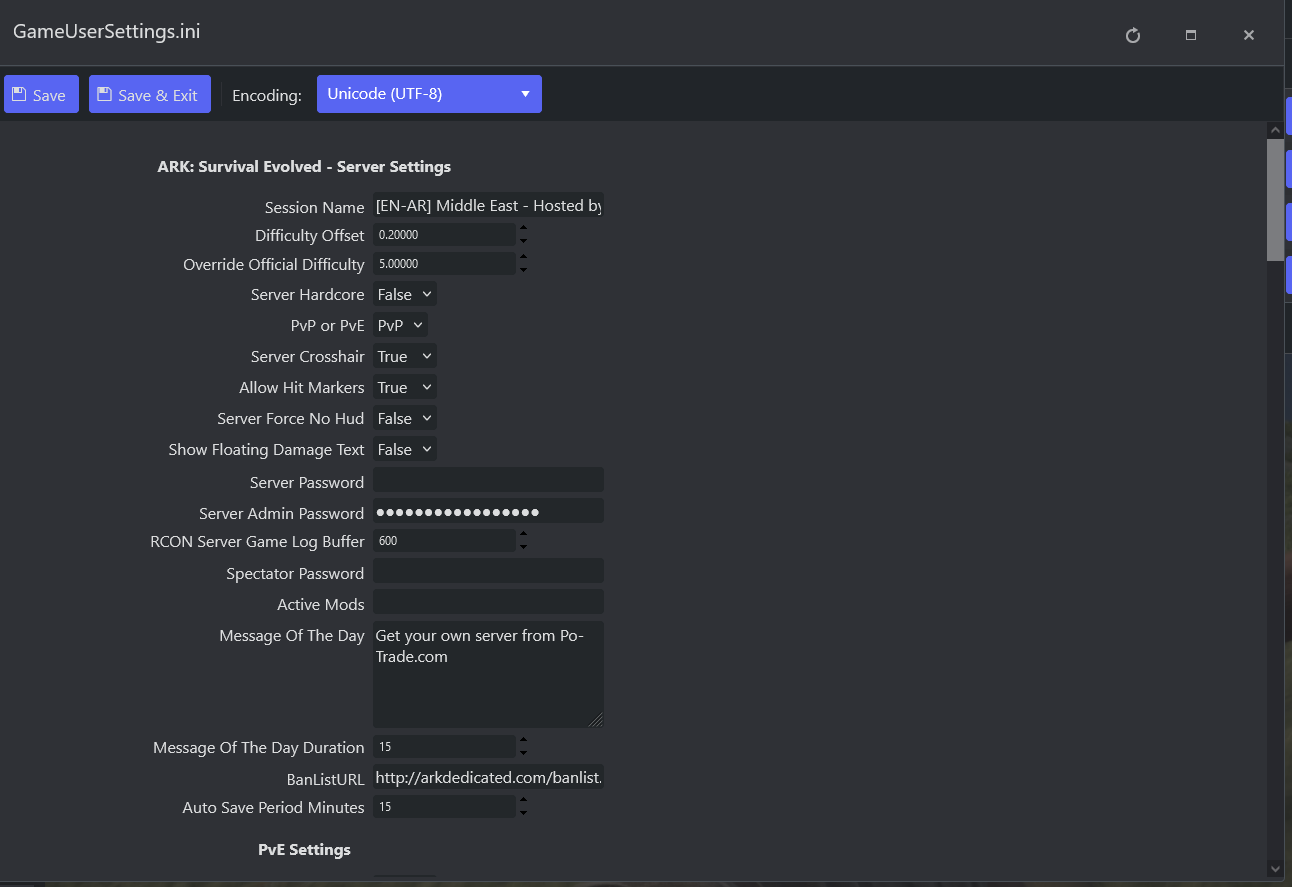
- Write the password down, then click Save.
You should now have your RCON IP, RCON Port, and Server Admin Password.
Part 2 — Connect with ARKON
- Run ARKON and open Settings.
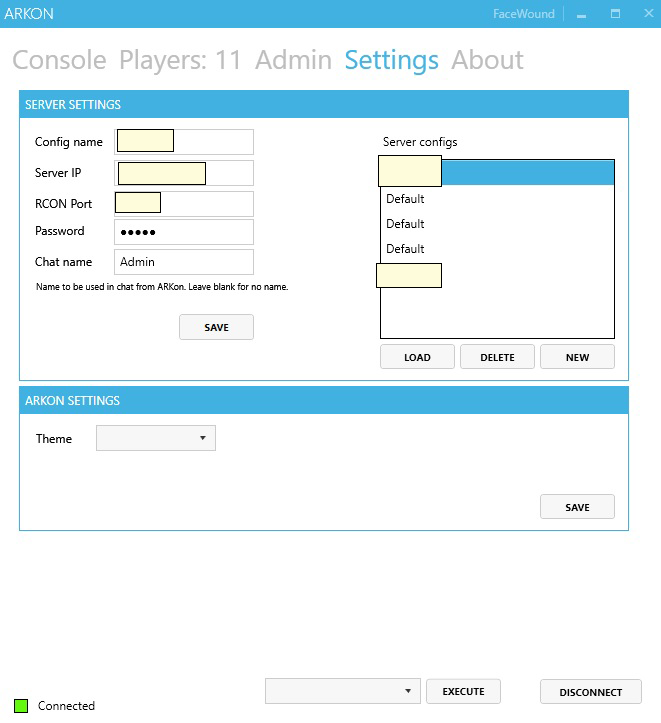
- Enter: a Config Name (anything), your Server IP, Server Port, and Password from Part 1, and a Chat Name (shown in-game).
- Save the config, then click Connect. ARKON shows CONNECTED when the details are correct.
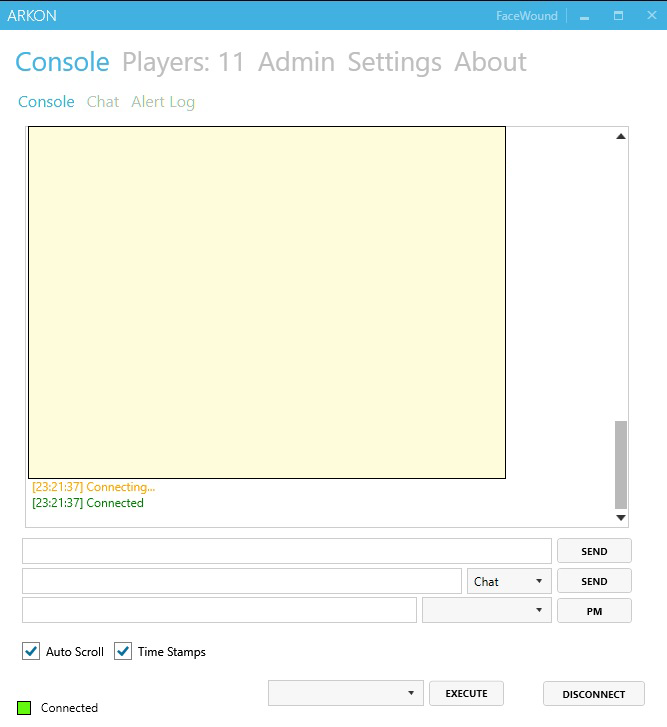
- From the Console you can read chat, post announcements, and send commands.
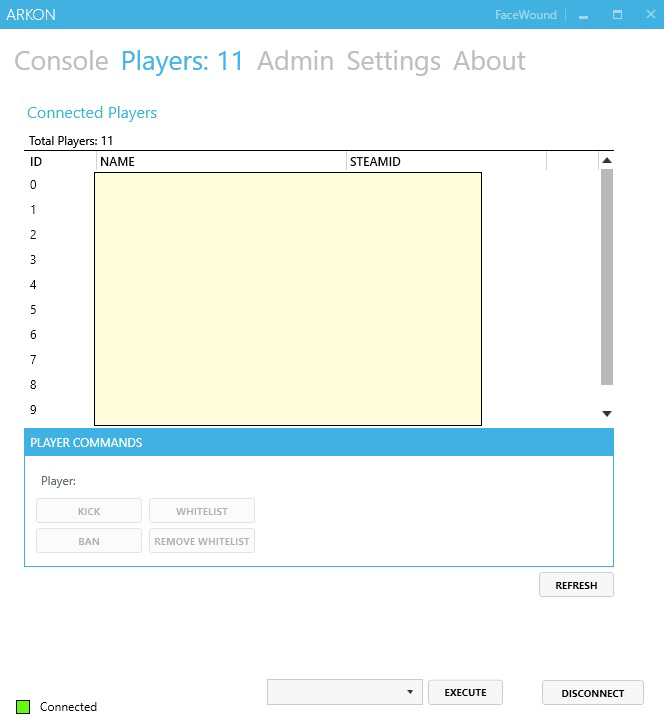
- From the Players menu you can view, kick, ban, or whitelist players.
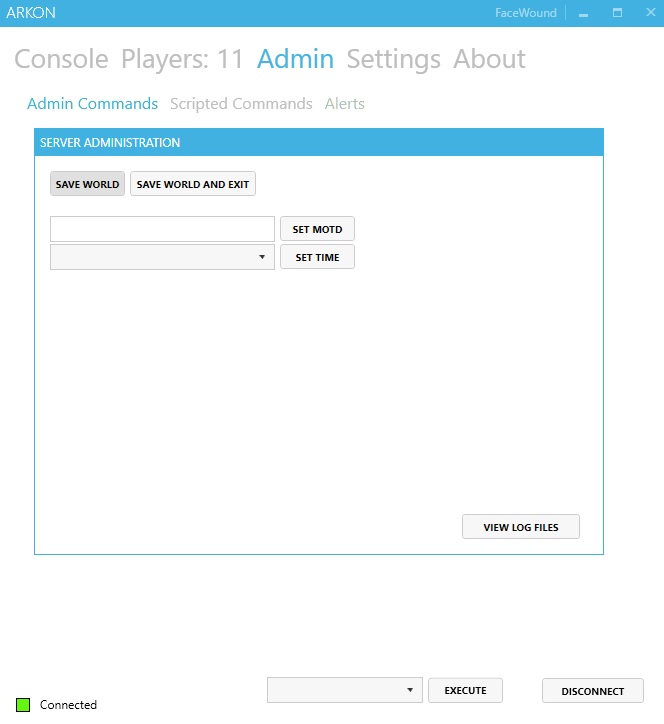
- To save the world at any time, open the Admin menu and click Save World — a message confirms the save.
Note: ARKON can occasionally disconnect and reconnect on its own. That's normal and doesn't affect your server.