Set Up Your Email in Gmail on Android
You can set up your POT email in the Gmail app on Android automatically or manually.
Automatic setup
- Open Gmail, tap your profile picture (top-right), tap Add another account, and choose Other.
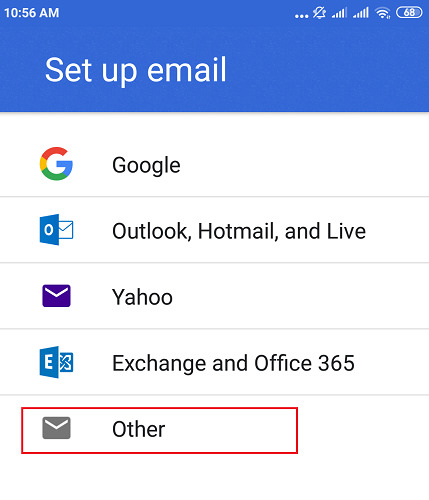
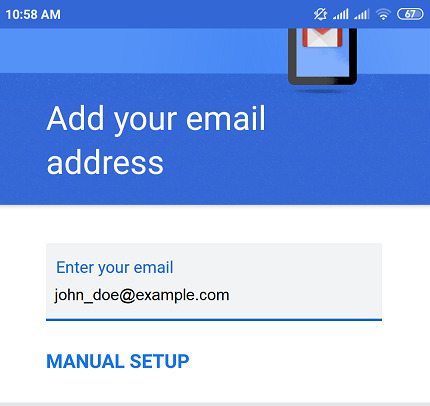
- Enter your email address and tap Next.
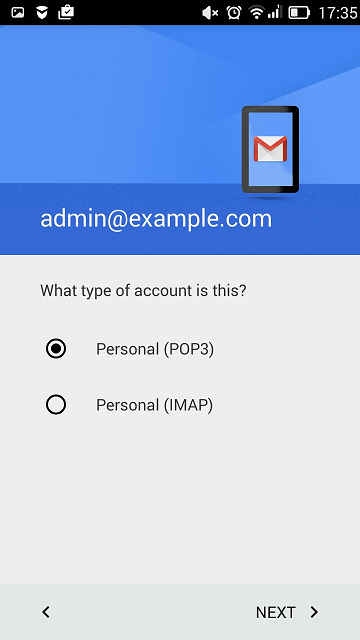
- Choose IMAP (keeps mail on the server) or POP3, then enter your password.
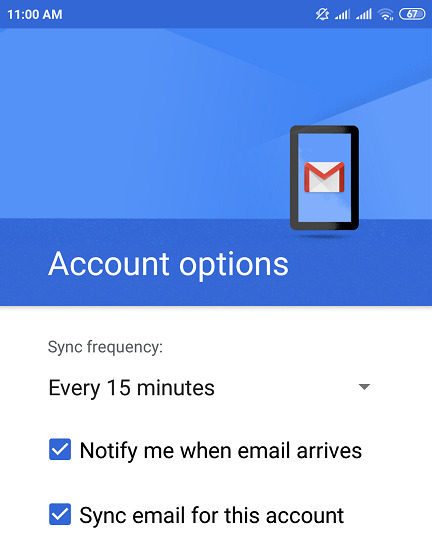
- Gmail fetches the incoming and outgoing settings automatically. Confirm the options and tap Next through to finish.
Certificate warning? If you see an SSL/TLS certificate message, it usually means the mail server's certificate domain differs from your settings. We recommend securing your domain with a free Let's Encrypt certificate, or set the incoming/outgoing server to match the name on the certificate.
Manual setup
- In Gmail, tap your profile → Add another account → Other, enter your email, and tap Manual setup.
- Choose IMAP or POP3 and enter your password.
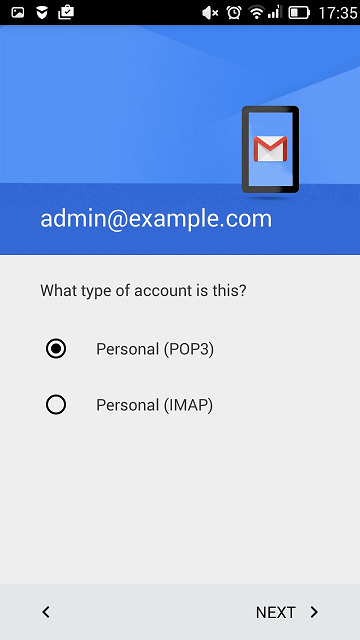
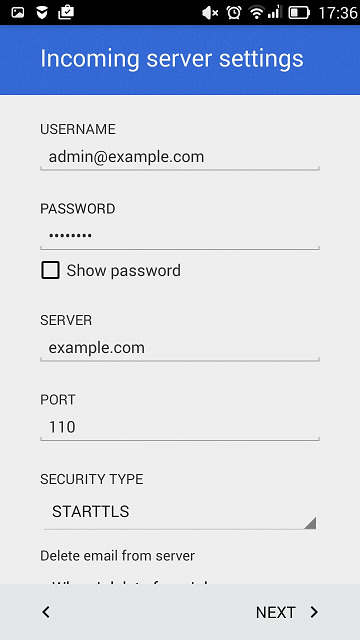
- Incoming server: use port
143for IMAP (or110for POP3), then tap Next.
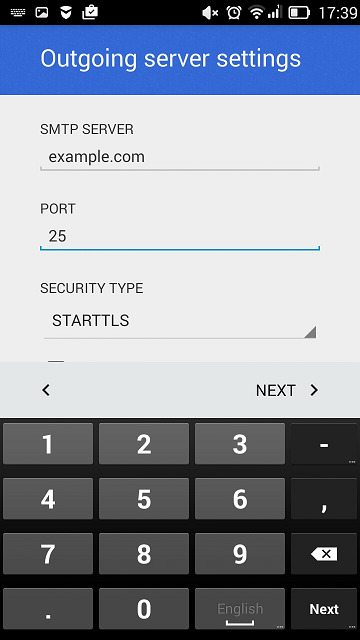
- Outgoing server: use port
25, then tap Next. Your account is created.