Set Up Your Email in Apple Mail
Set up your POT email in Apple Mail.
Add the account
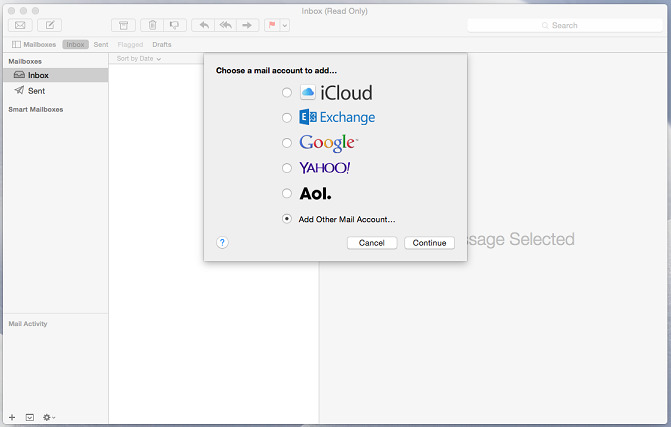
- Open Apple Mail and choose Add Other Mail Account, then Continue.
- Enter your full name, email address, and password, and click Create. When prompted to configure manually, click Next.
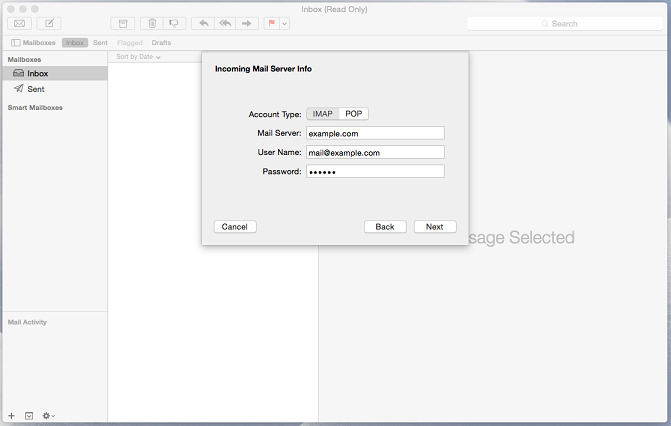
- Set Account Type to IMAP (recommended) or POP, set Mail Server to your domain (e.g.
example.com), User Name to your full email address, and your password. Click Next.
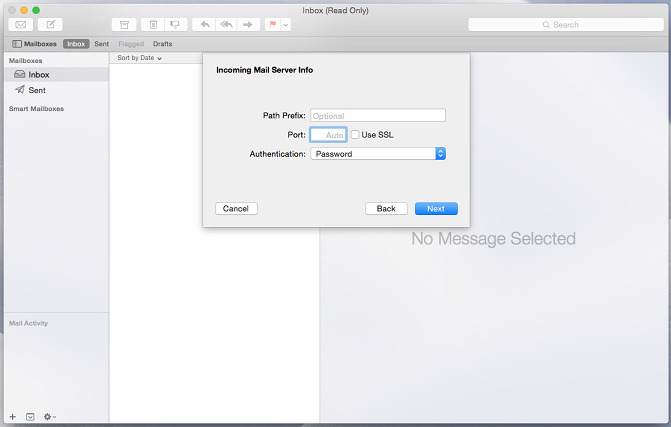
- For incoming settings, leave Path Prefix empty and Port on Auto, set Authentication to Password, and tick Use SSL if advised. Click Next.
- For outgoing (SMTP), set the server to your domain, your full email as username, and your password. Click Next.
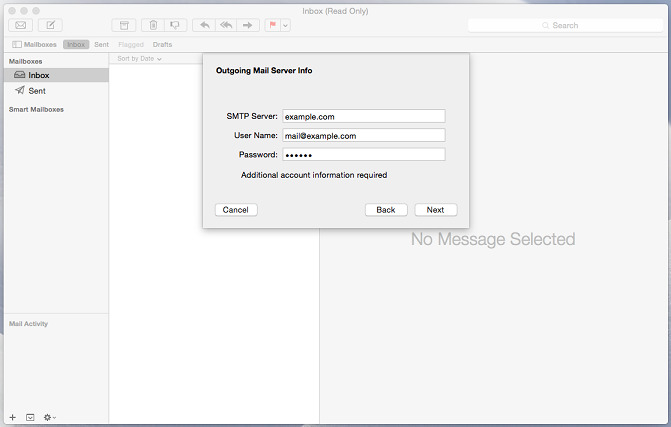
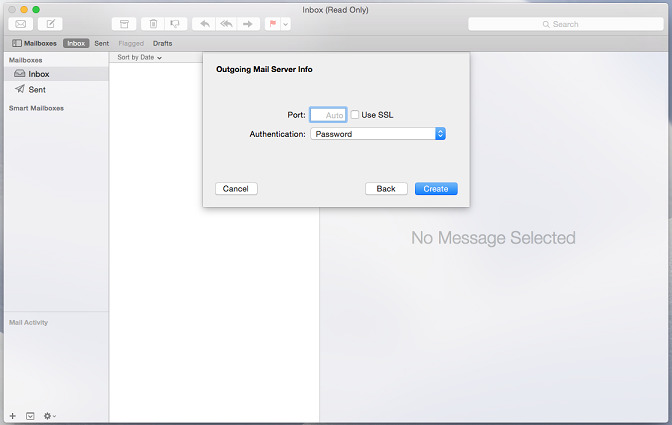
- Confirm the outgoing port (Auto) and authentication (Password), then click Create.