
How to Use Zeta - Your AI Assistant (Web Hosting)
Zeta is your built-in AI assistant for your web hosting. Tell it what you want in plain language — English, العربية, or your own dialect — and it helps you get it done, from answering questions to building and editing your website. Here is how to find and use it.
Before you begin: you will need an active web-hosting service and your account login.
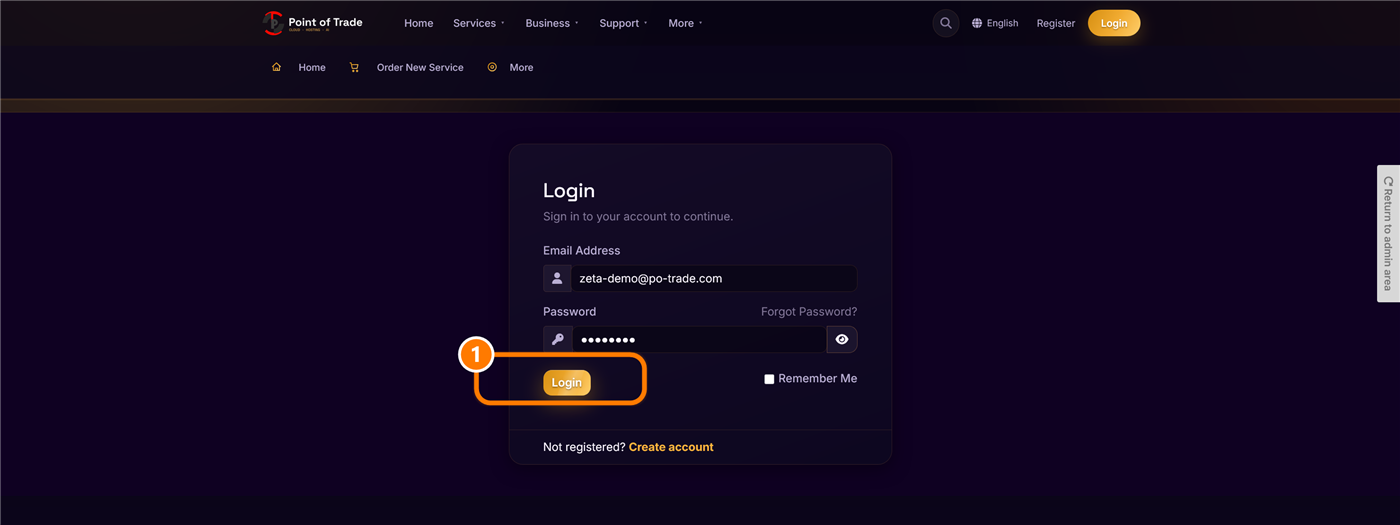
1. Log in to your account
Go to po-trade.com and click My Account at the top-right, then sign in.
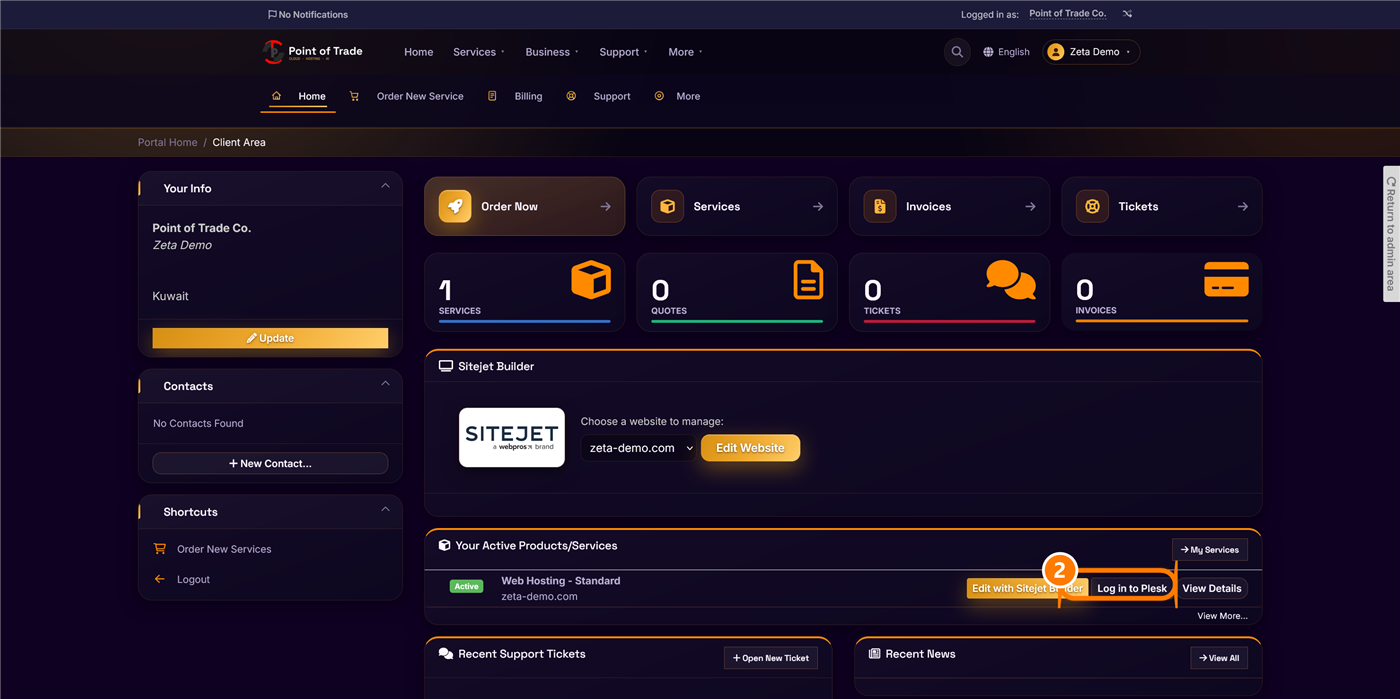
2. Open your web hosting
On your dashboard, find your Web Hosting service under Your Active Products/Services and click Log in to Plesk. This opens your hosting control panel.
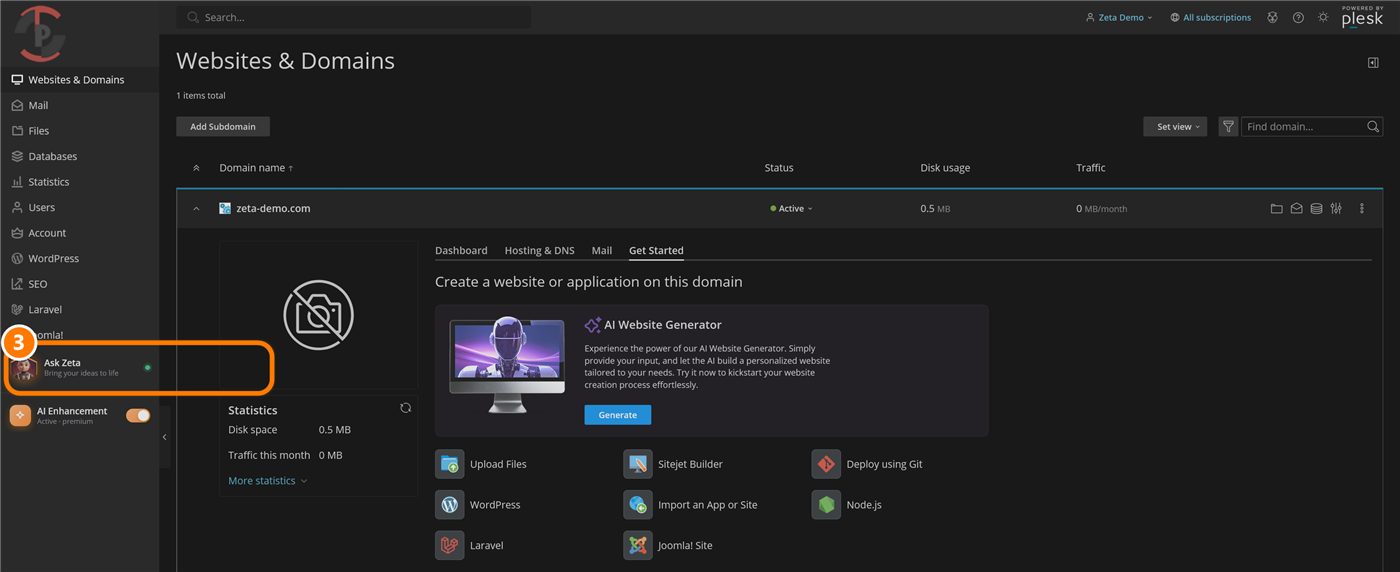
3. Open Zeta
In your panel, look at the bottom of the left-hand menu and click Ask Zeta. Just above it you will see AI Enhancement, which shows the feature is active on your plan.
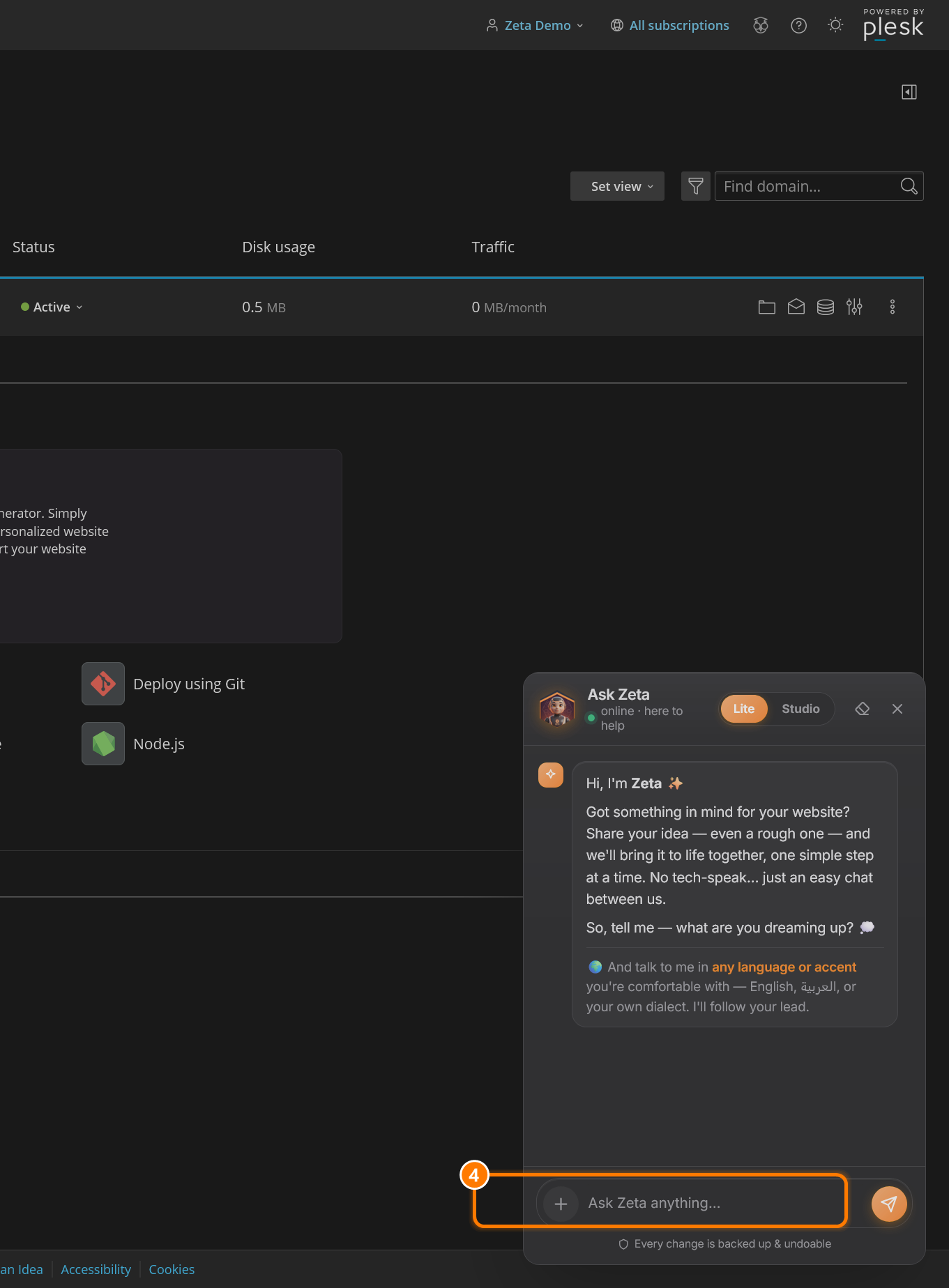
4. Start chatting
Zeta greets you. Type your question or idea in the “Ask Zeta anything…” box and press send. You can talk to Zeta in any language — it follows your lead.
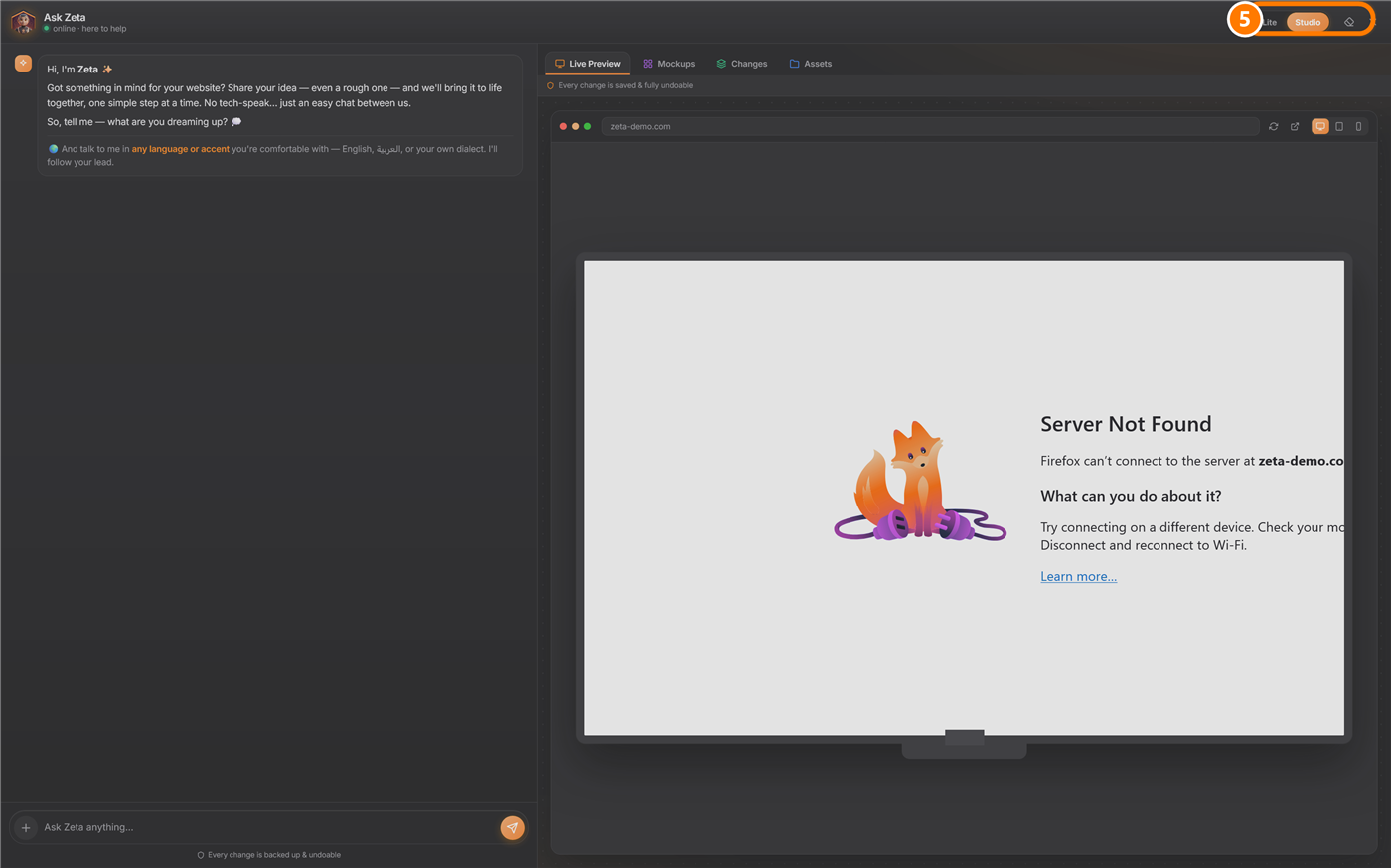
5. Choose your mode
At the top of the chat you can switch between two modes:
- Lite — a compact chat that sits beside your panel. Best for quick questions and small bits of help while you work.
- Studio — a full workspace with a live preview of your site, plus Mockups, Changes, and Assets. Best for building or redesigning your website with Zeta.
Good to know
- Talk naturally — no technical terms needed.
- Every change is backed up and fully undoable.
- Switch between Lite and Studio anytime from the top of the chat.
- If Zeta is ever briefly offline for maintenance, it will tell you — and everything you have done stays safe.
That is it — Zeta is always one message away.