
WireGuard Split Tunneling — Custom Rules (Windows, Recommended)
By default, turning on the VPN sends all your PC traffic through it. Split tunneling lets you choose exactly which apps or games use the VPN while everything else uses your normal connection. As an example, we'll route Battlefield 6 through the VPN and leave everything else on your normal internet.
This guide covers the custom rules, not installing the VPN. For installation, see Set Up WireGuard Split Tunneling on Windows.
Create a custom rule
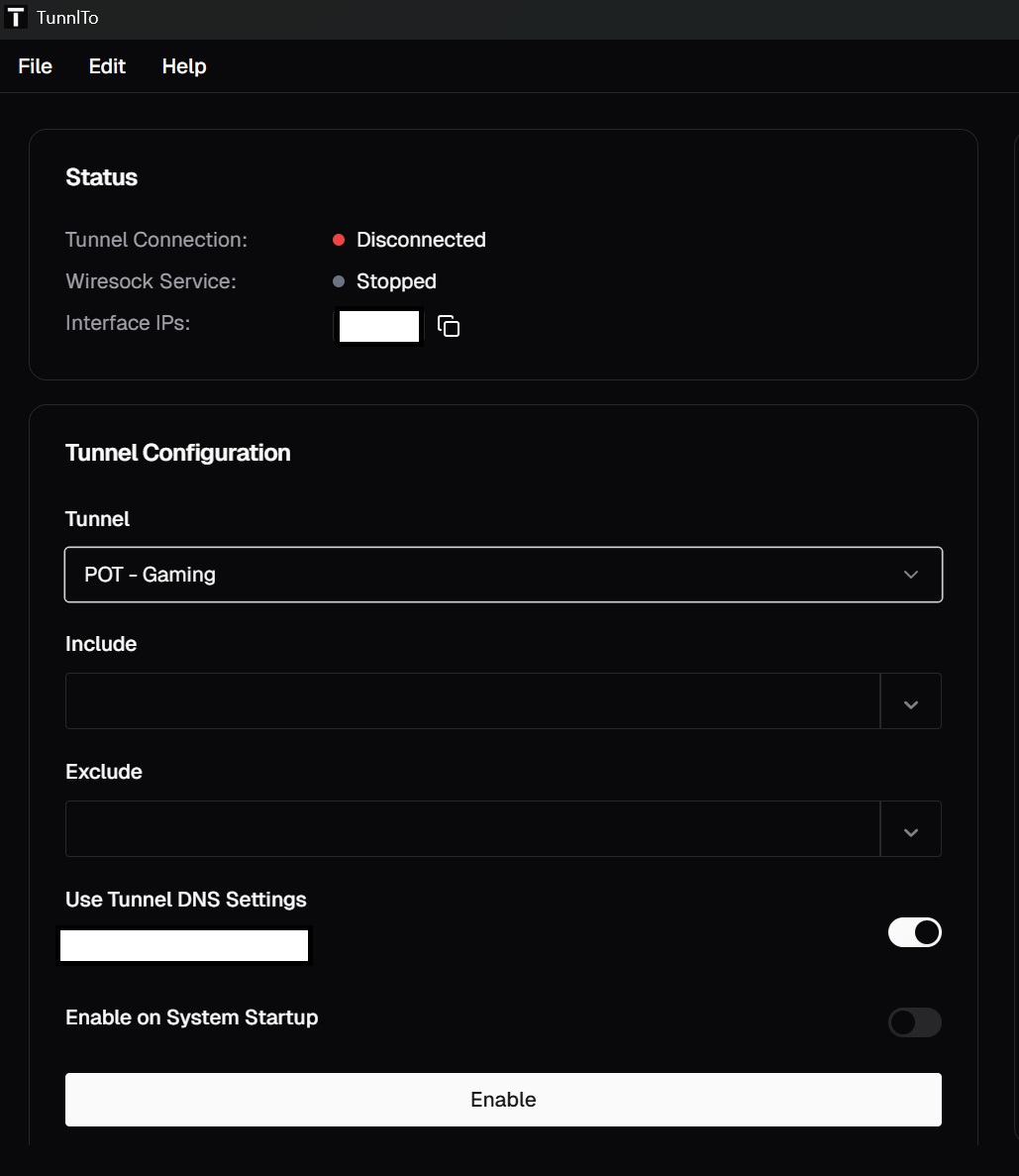
With nothing in the Include section, all traffic goes through the VPN:
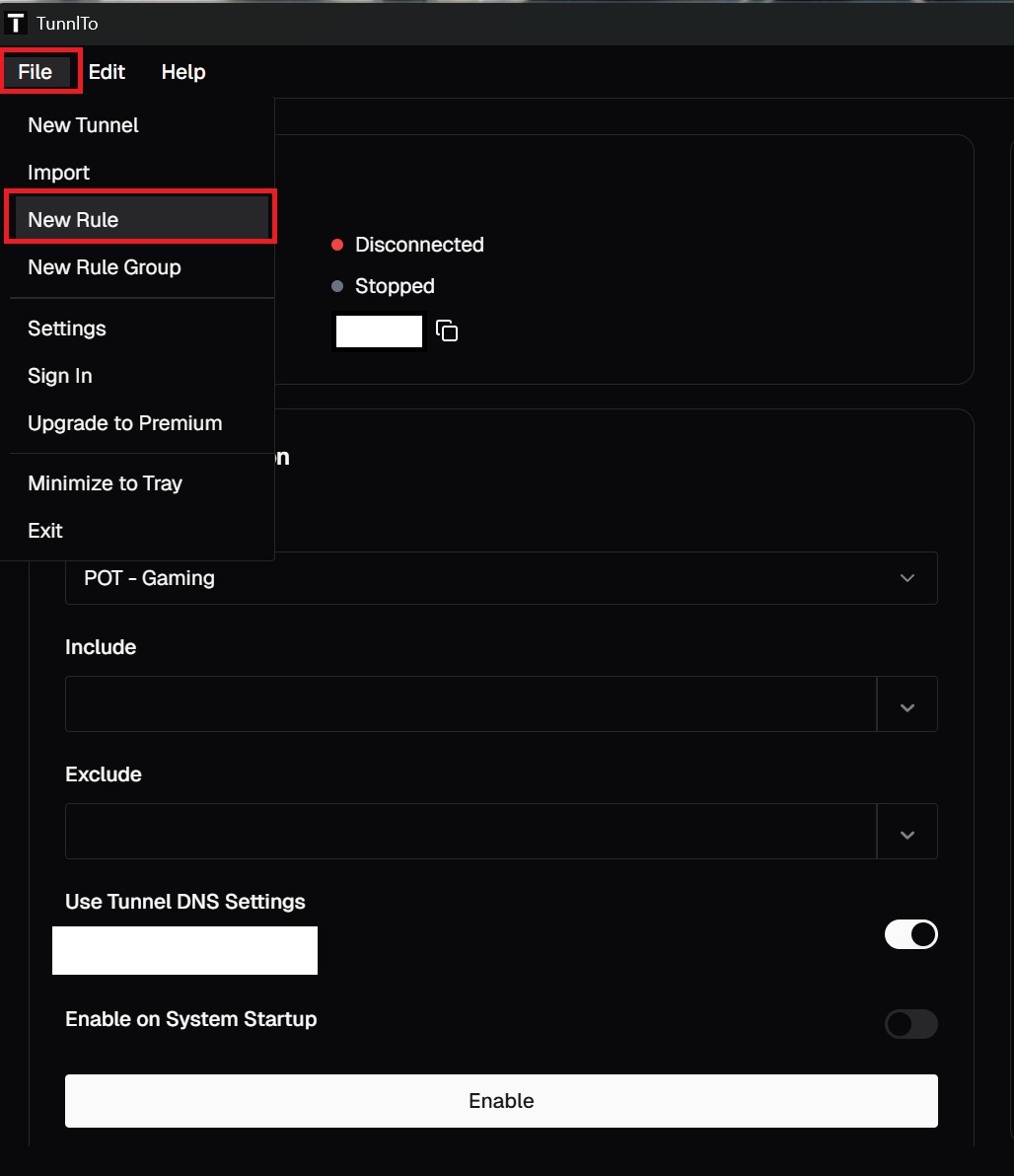
- Click File → New Rule.
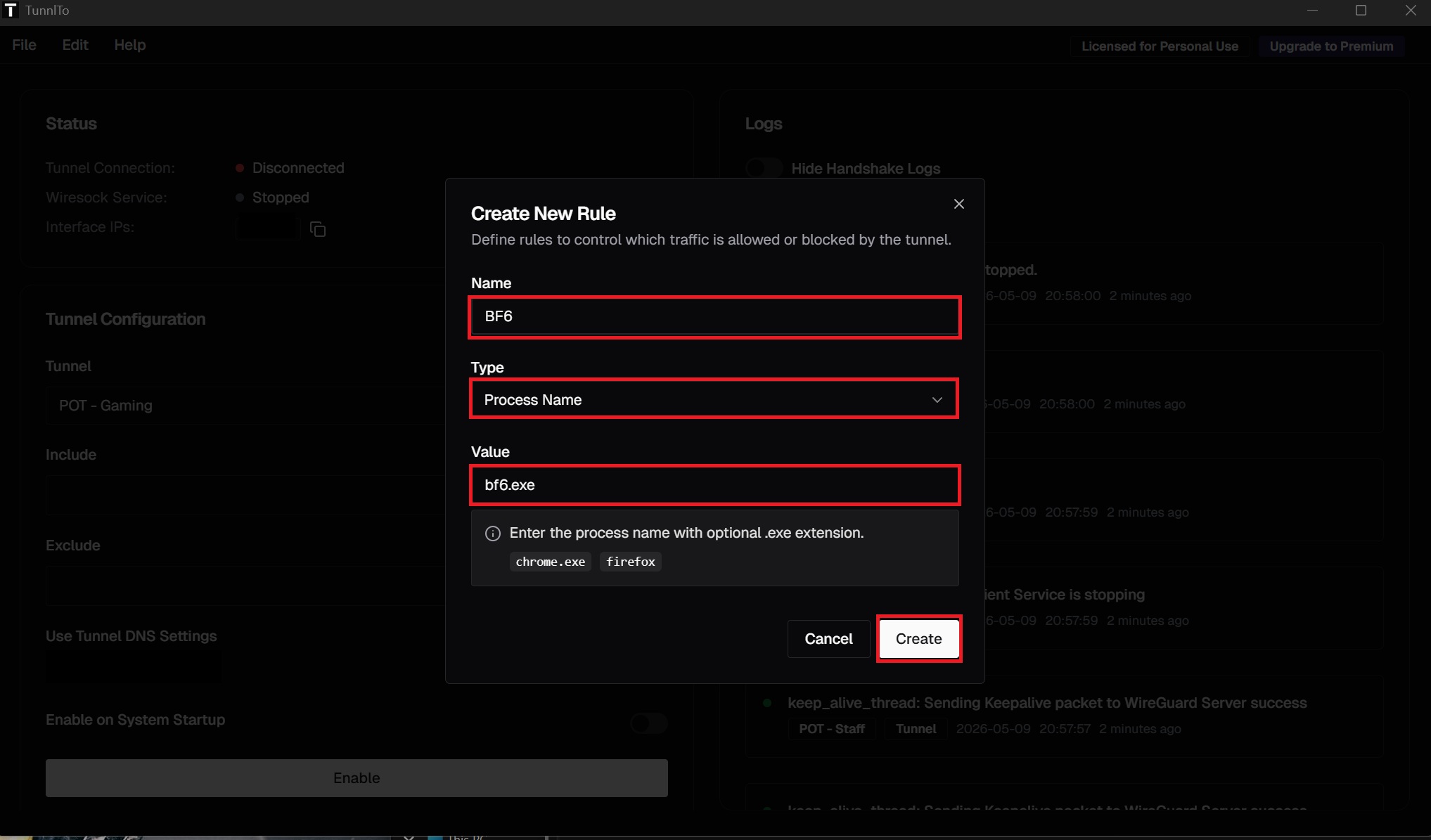
- Enter the app's details (Battlefield 6 example):
- Name: any label (e.g. BF6)
- Type: Process Name
- Value:
bf6.exe
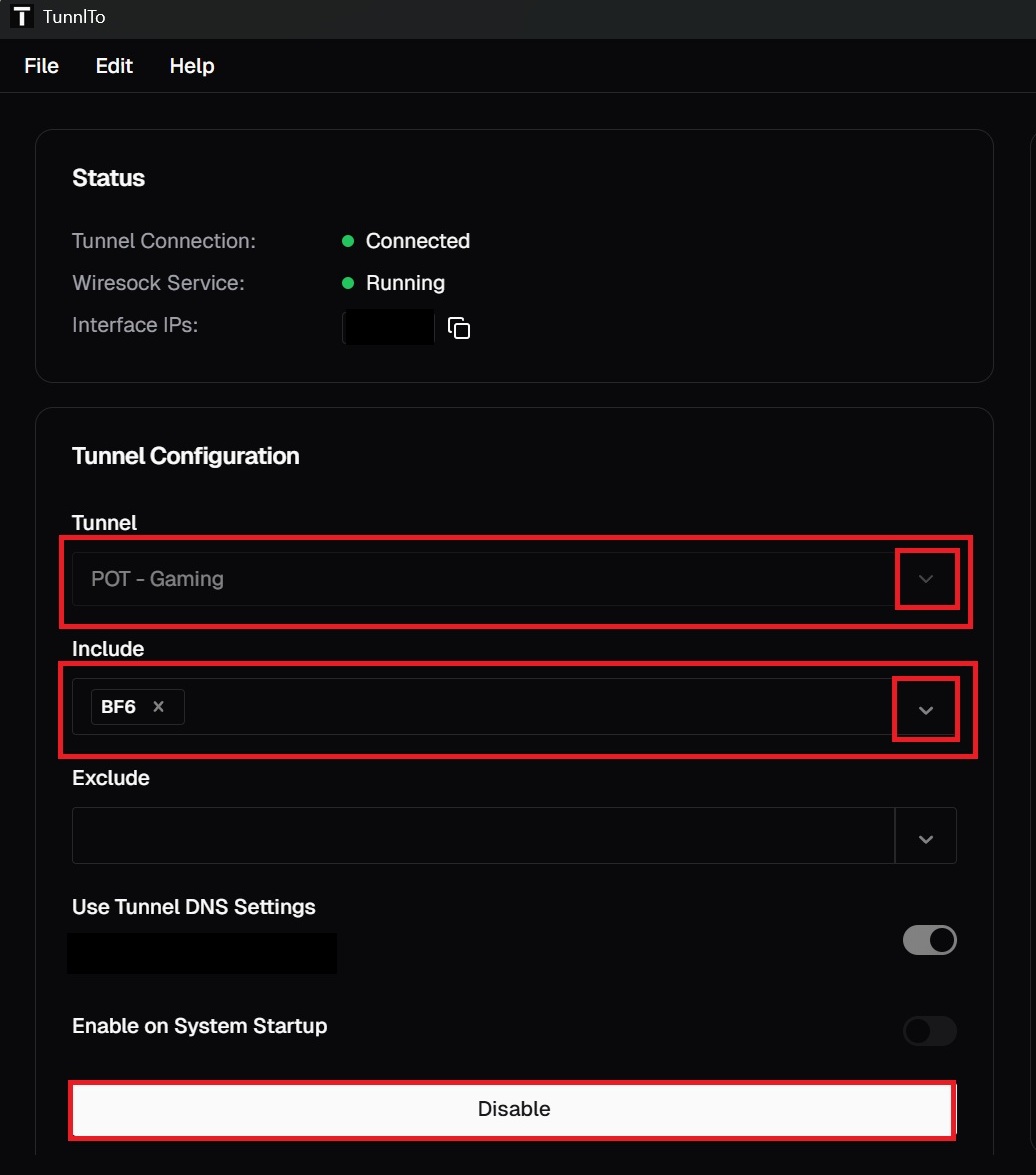
- In the Tunnel Configuration section, set Tunnel to the tunnel name you created during install, and set Include to your rule (BF6).
- Add as many rules as you like for more games and apps.
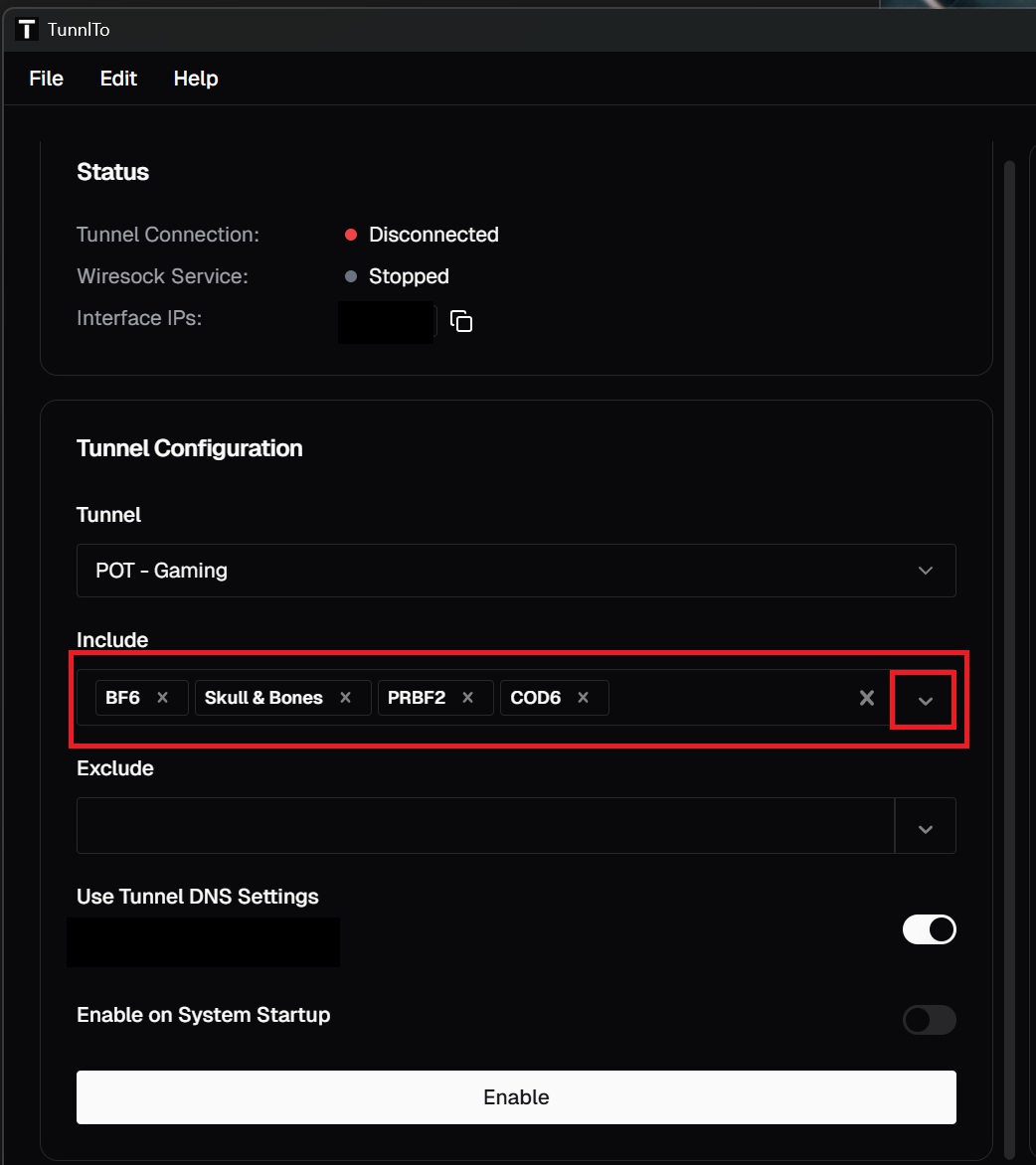
How to find an app's process value
- Run the game or app.
- Press Ctrl + Alt + Delete and open Task Manager.
- Find the app, right-click it, and choose Properties.
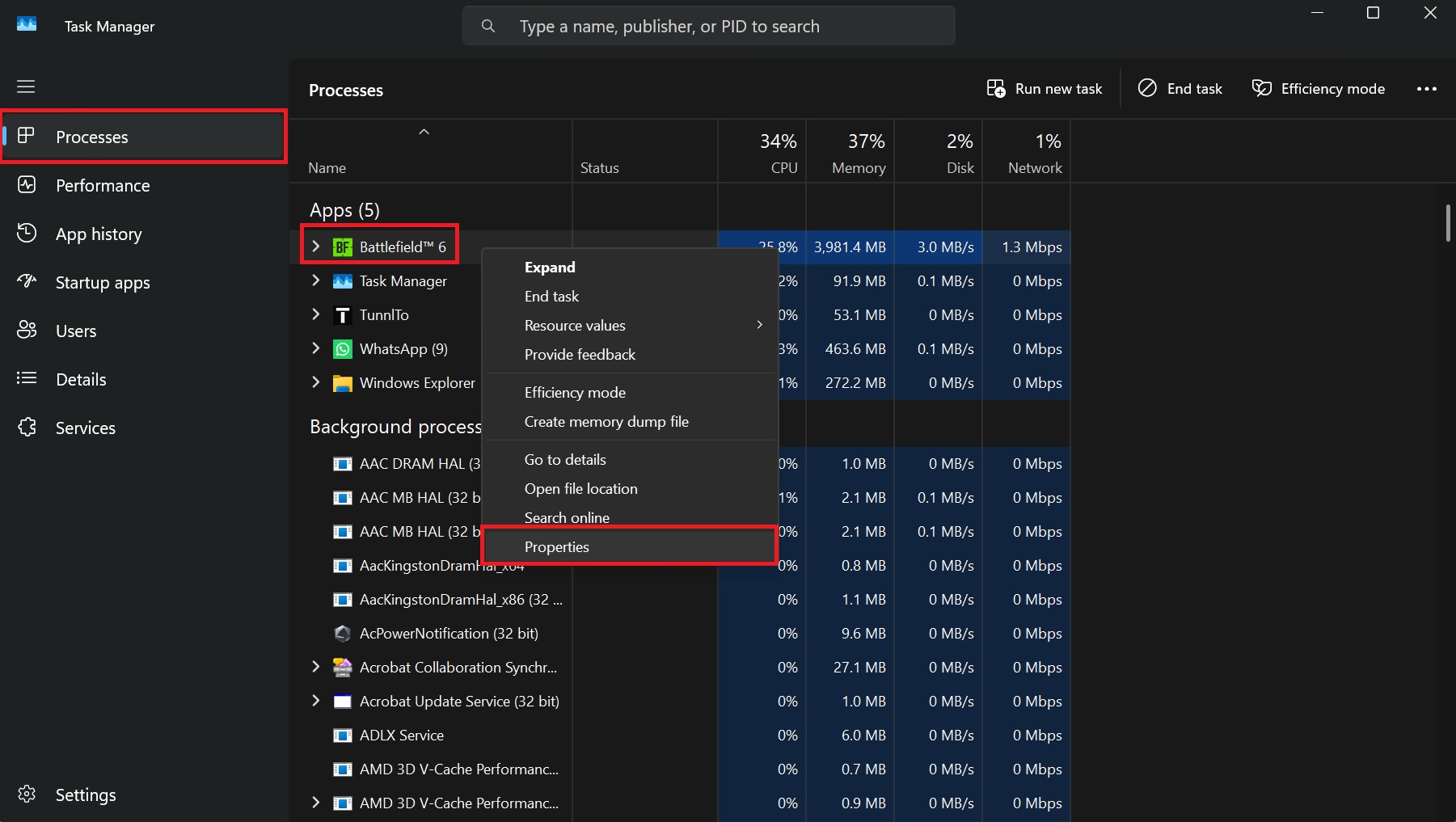
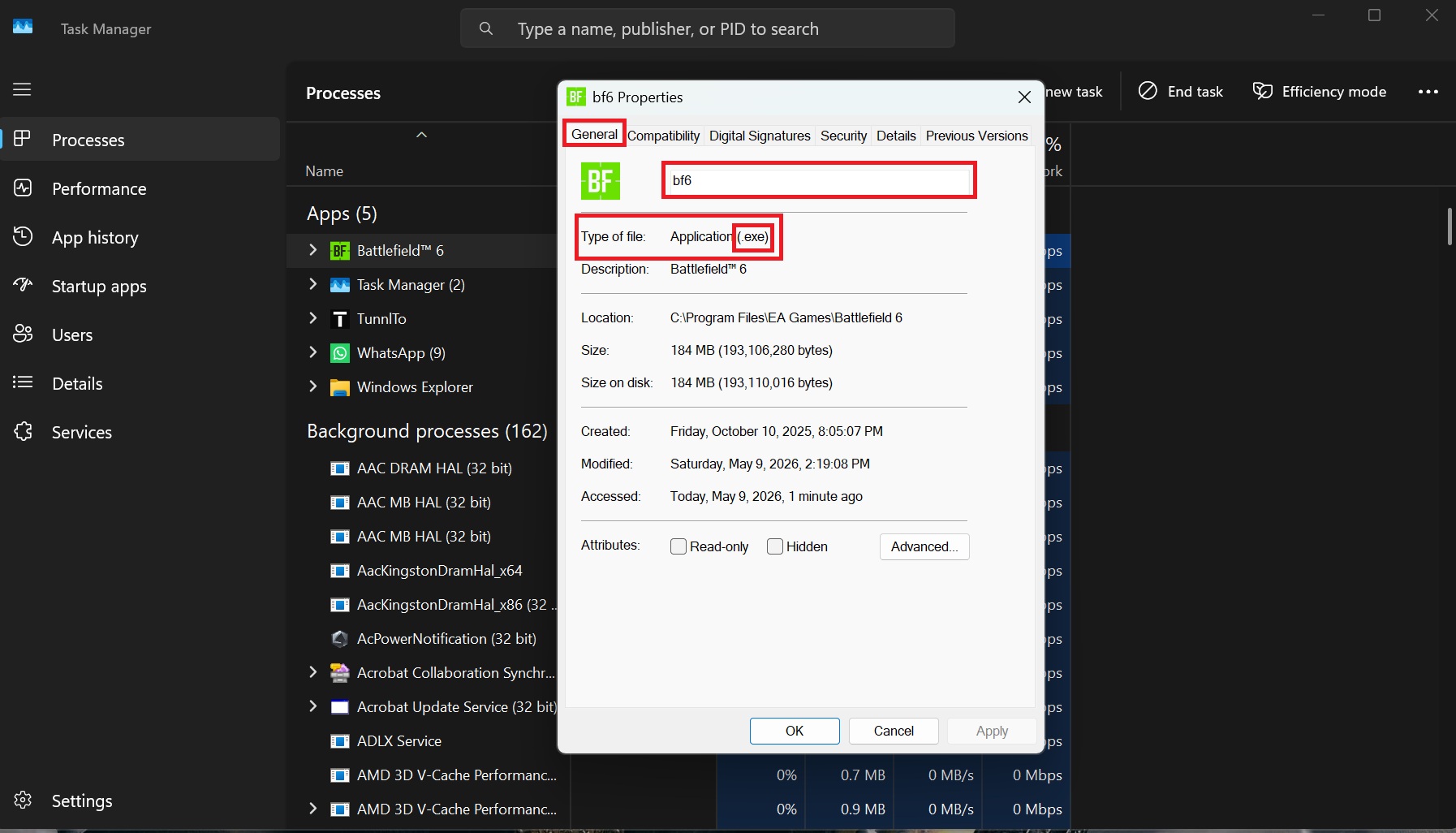
- On the General tab you'll see the name and file type — combine them for the value (e.g.
bf6+.exe=bf6.exe).
Split tunneling is now active for the apps you chose. You can also build other rule types — grouping apps, by IP range, or by folder path.