
Set Up WireGuard on an Asus Router
Some devices — like PlayStation, Xbox, and other consoles — don't support a VPN directly. A handy workaround is to run the VPN on your router, so every connected device uses it automatically.
Requirements: an Asus router on firmware later than 3.0.0.4.388.23000 (WireGuard support).
Set up the router
- In a browser, open your router's web GUI (your router's LAN IP, or asusrouter.com) and sign in.
- Go to VPN → VPN Fusion and click Add profile.

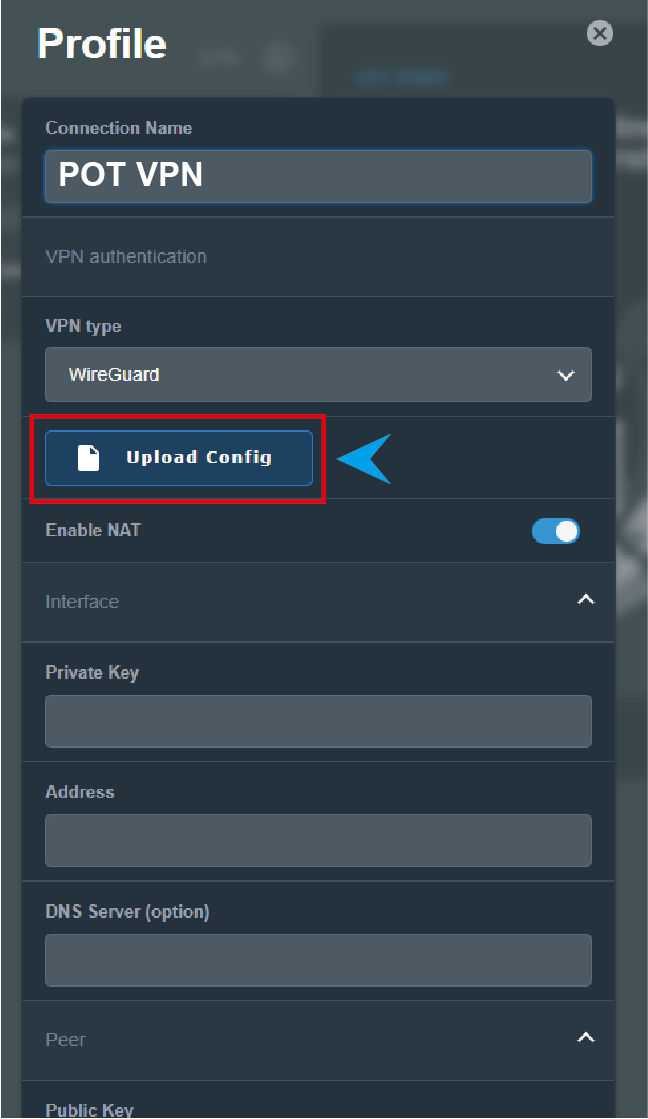
- Click Upload Config and upload your WireGuard config file (download it first — see below).
- Scroll down and click the Device icon to assign which devices use this VPN profile.
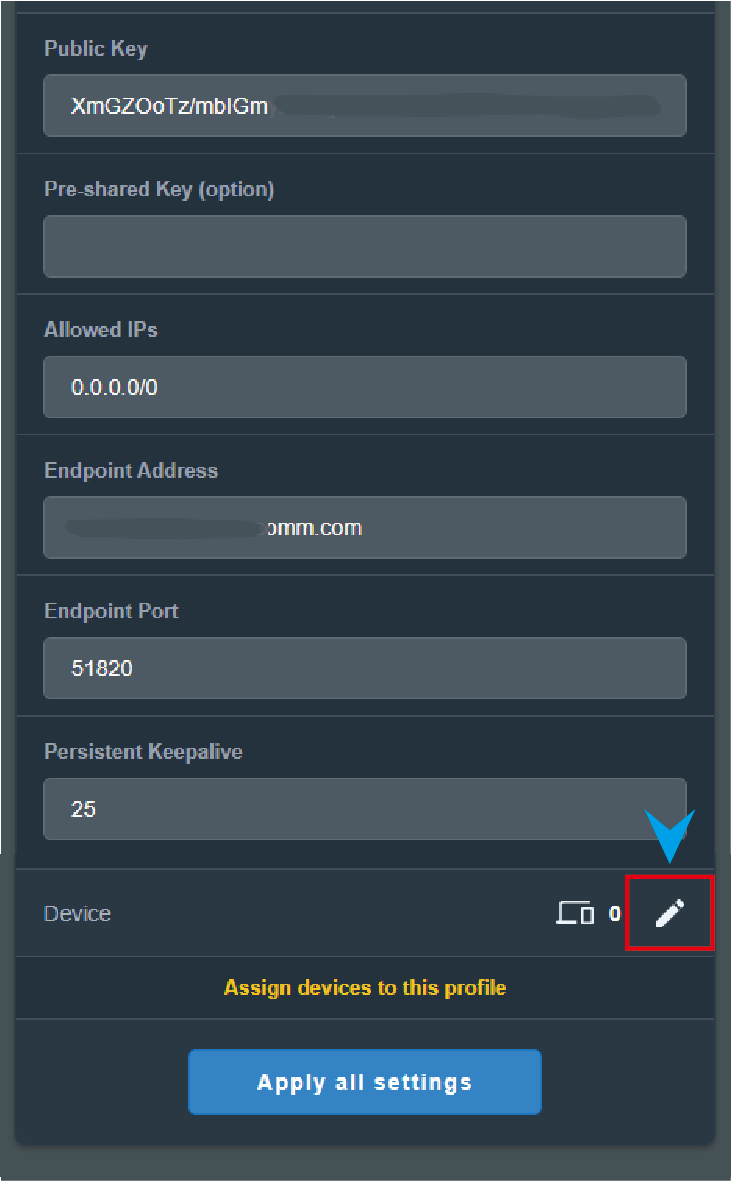
- Enable the devices, then click Apply all settings.

- Click the VPN profile to enable the connection.
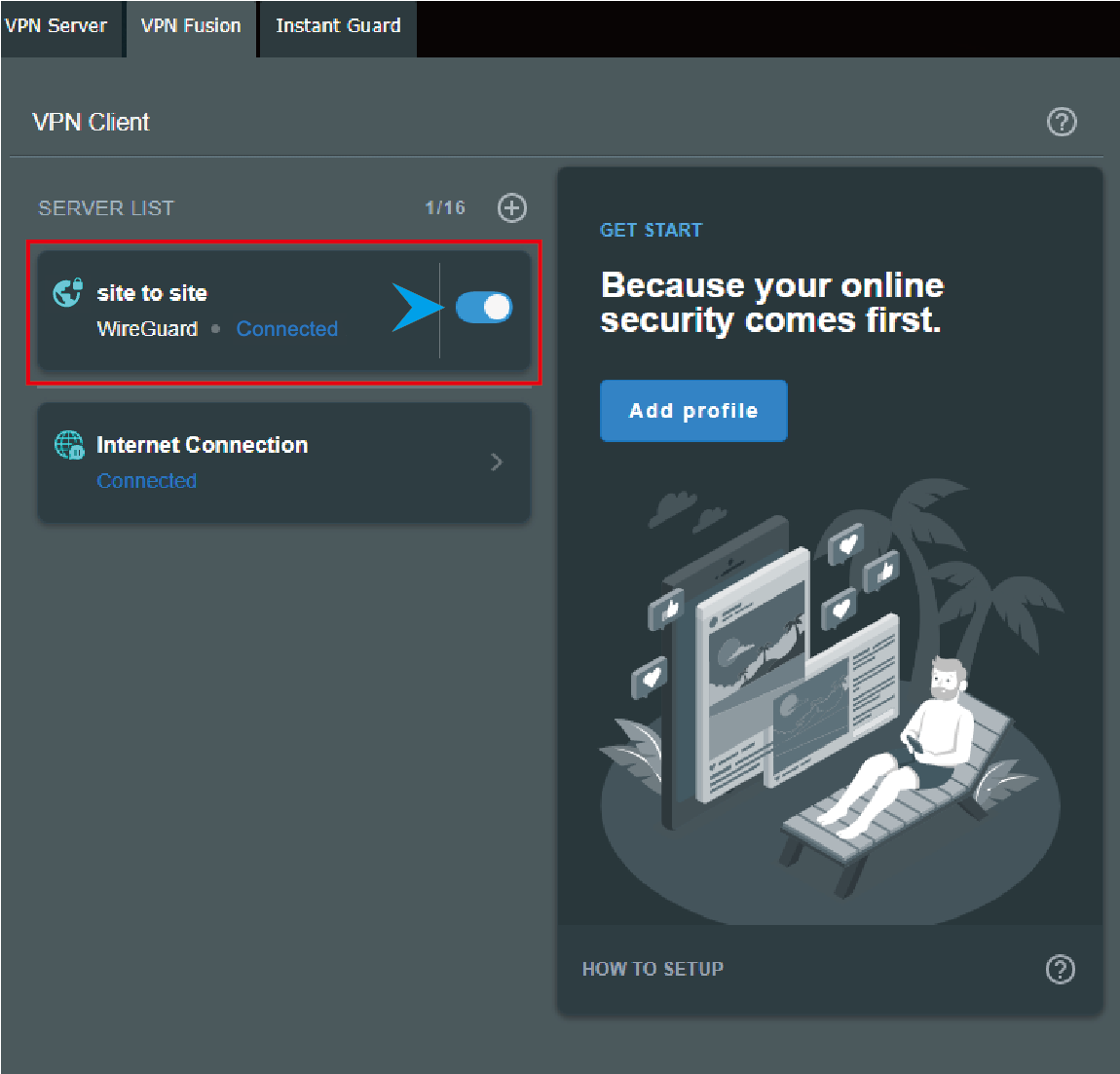
Note: disable the WireGuard profile to disconnect, or delete it from the profile list.
How to download your config file
- Log in to your account and open your VPN service.

- Click Download Config.
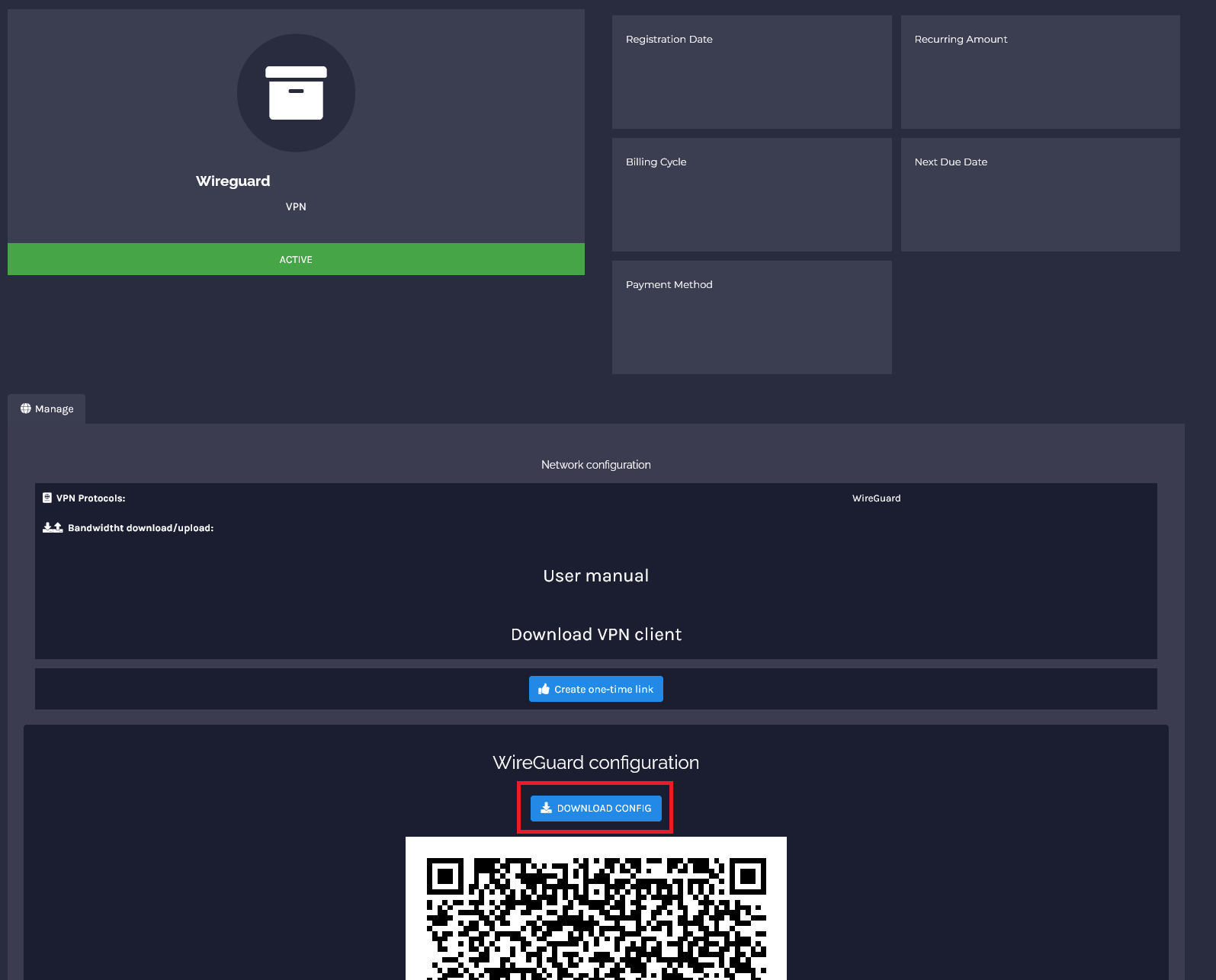
- Upload this file in the Upload Config step above and continue.