
Set Up the WireGuard Client on Windows
Connect to your POT VPN on Windows with the official WireGuard client.
1. Open your VPN link and download the config
Open the one-time link you received in a browser — you'll see your VPN setup page.
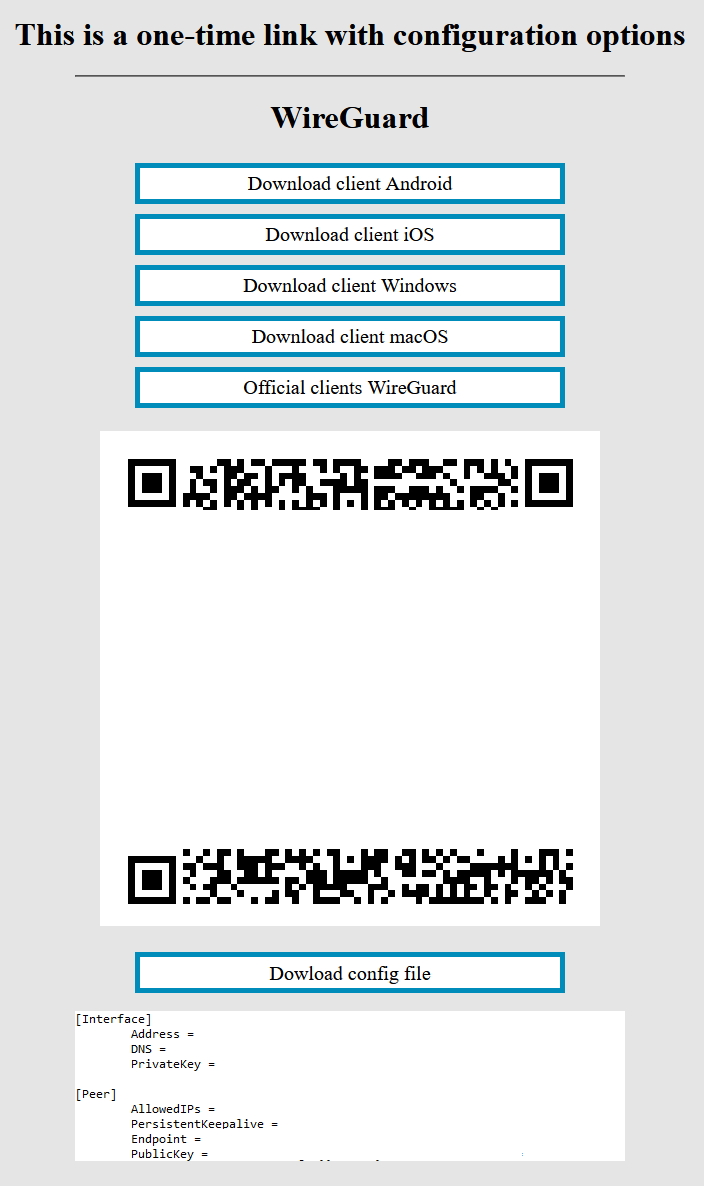
Click Download config file and save it somewhere you can find it.

2. Install the WireGuard client
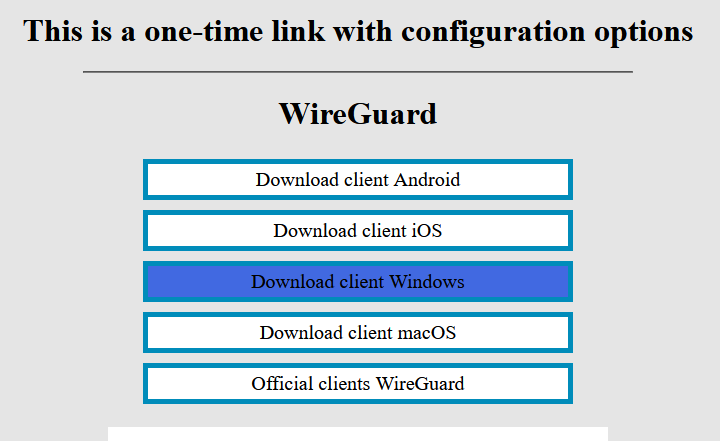
On the same page, click Download client (Windows) and install the app.

3. Import your tunnel and connect
- Open WireGuard and click Import tunnel(s) from file.
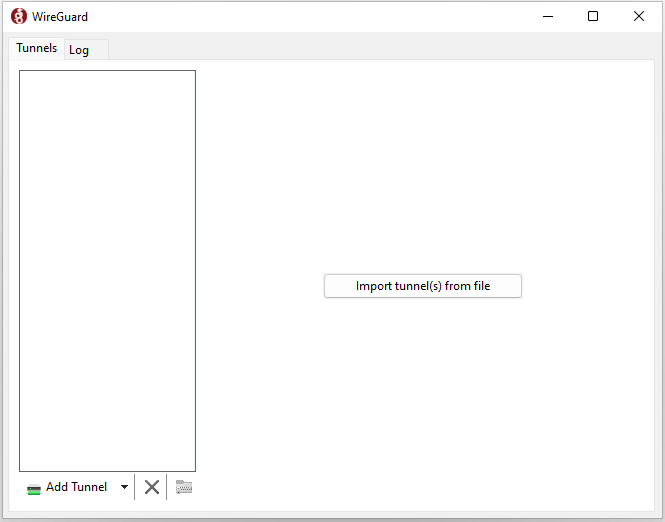
- Select the config file you downloaded.

- The connection is created. Click Activate to connect.
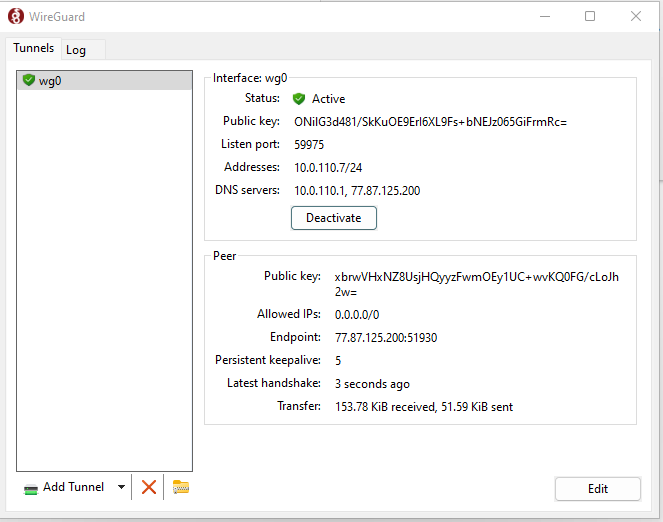
Your VPN connection is now active.