
Upload an Existing World to Your Palworld Server
Moving a local single-player world onto your dedicated Palworld server lets everyone play on the same map. This guide shows you how to find your world files and upload them to your server.
Important: when you transfer a local world to a server, the host player loses their character progress — the dedicated server takes over the host's role. Before transferring, have the host player put as many items and Pals into storage as possible.
1. Locate your world files
In-game, open your save folder using the open folder button.

Select the world you want, then click the folder icon in the bottom-left.
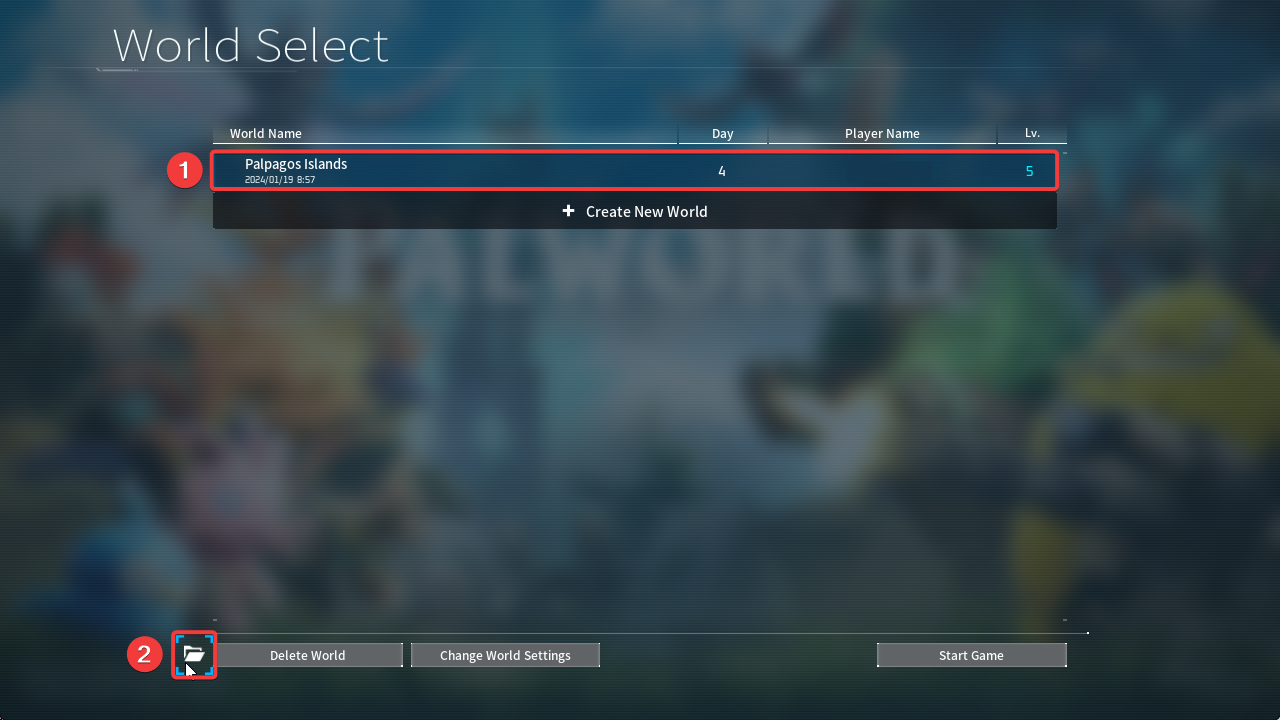
Your world files will open — keep them handy, ready to upload.

2. Upload the world to your server
- In the Game Control Panel, Stop your server.
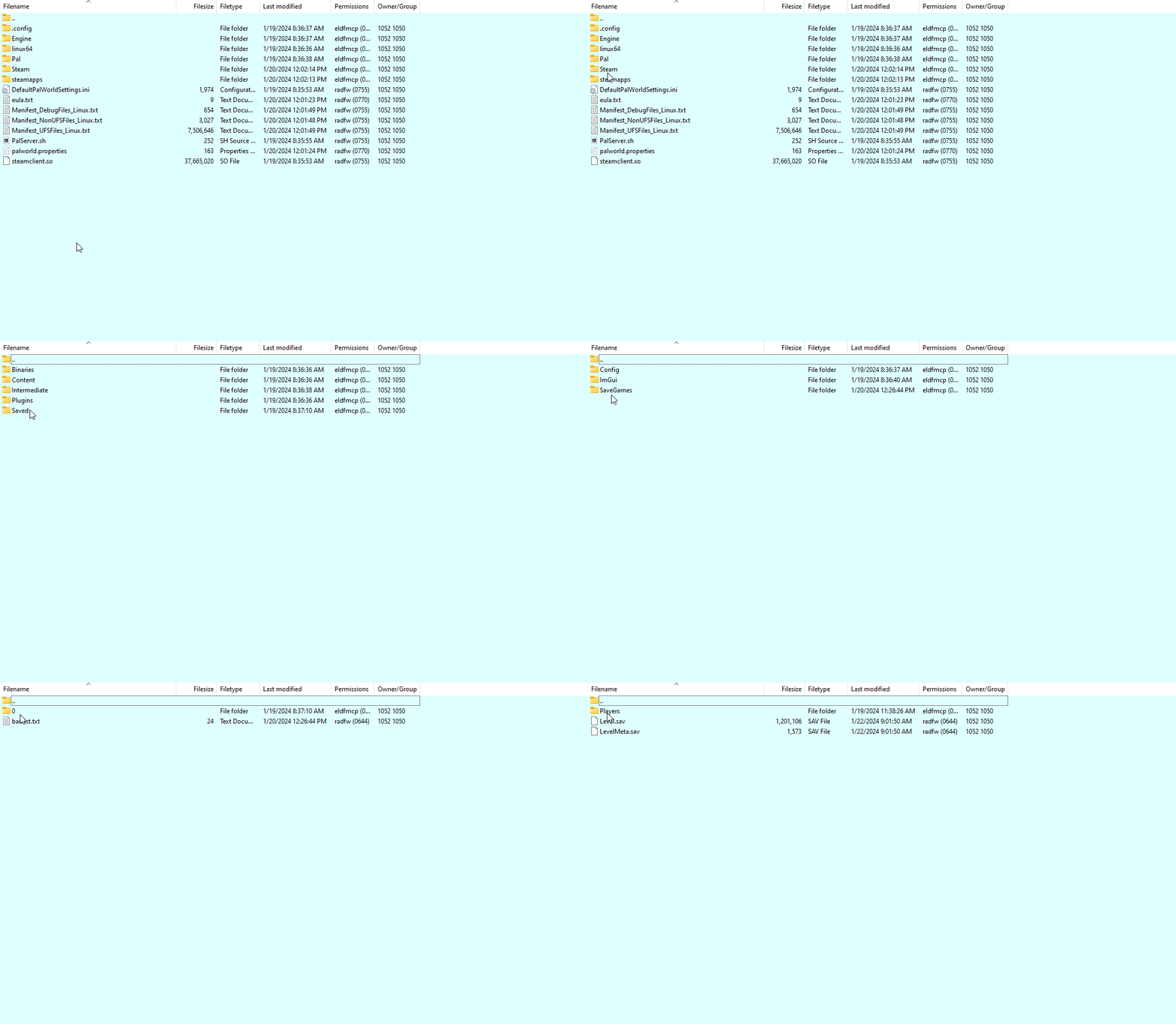
- Connect to your server with the panel's File Manager, or via FTP (e.g. FileZilla).
- Go to
/Pal/Saved/SaveGames/0, then open the last folder (usually a random string of characters).
- Delete all the files inside this folder — they'll be replaced by your existing world files. (Back them up first if you'd like to reuse them later.)
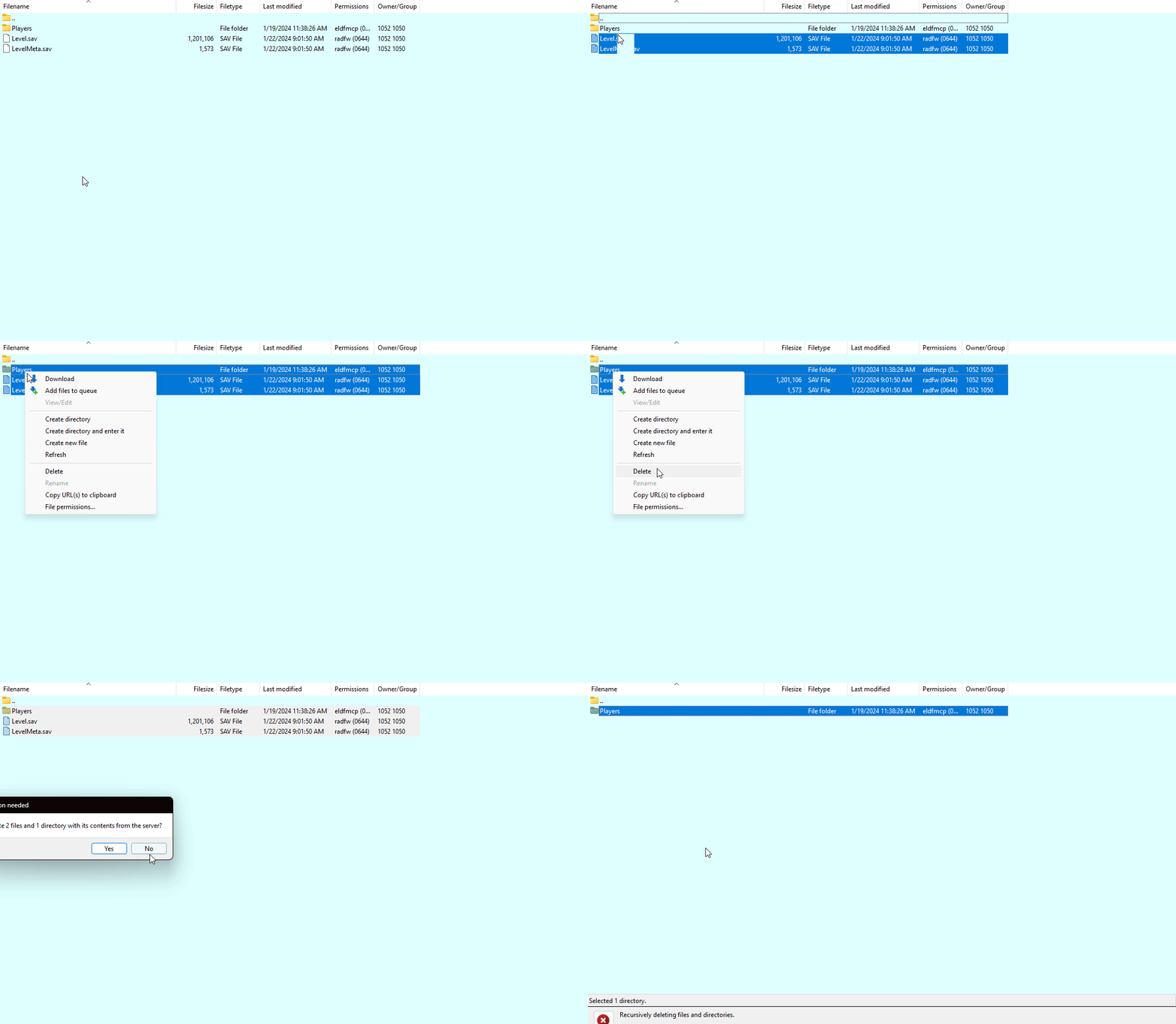
- Upload your existing world files — but not the
WorldOption.savfile. (Uploading it would override all your server configuration.) - Start your server.