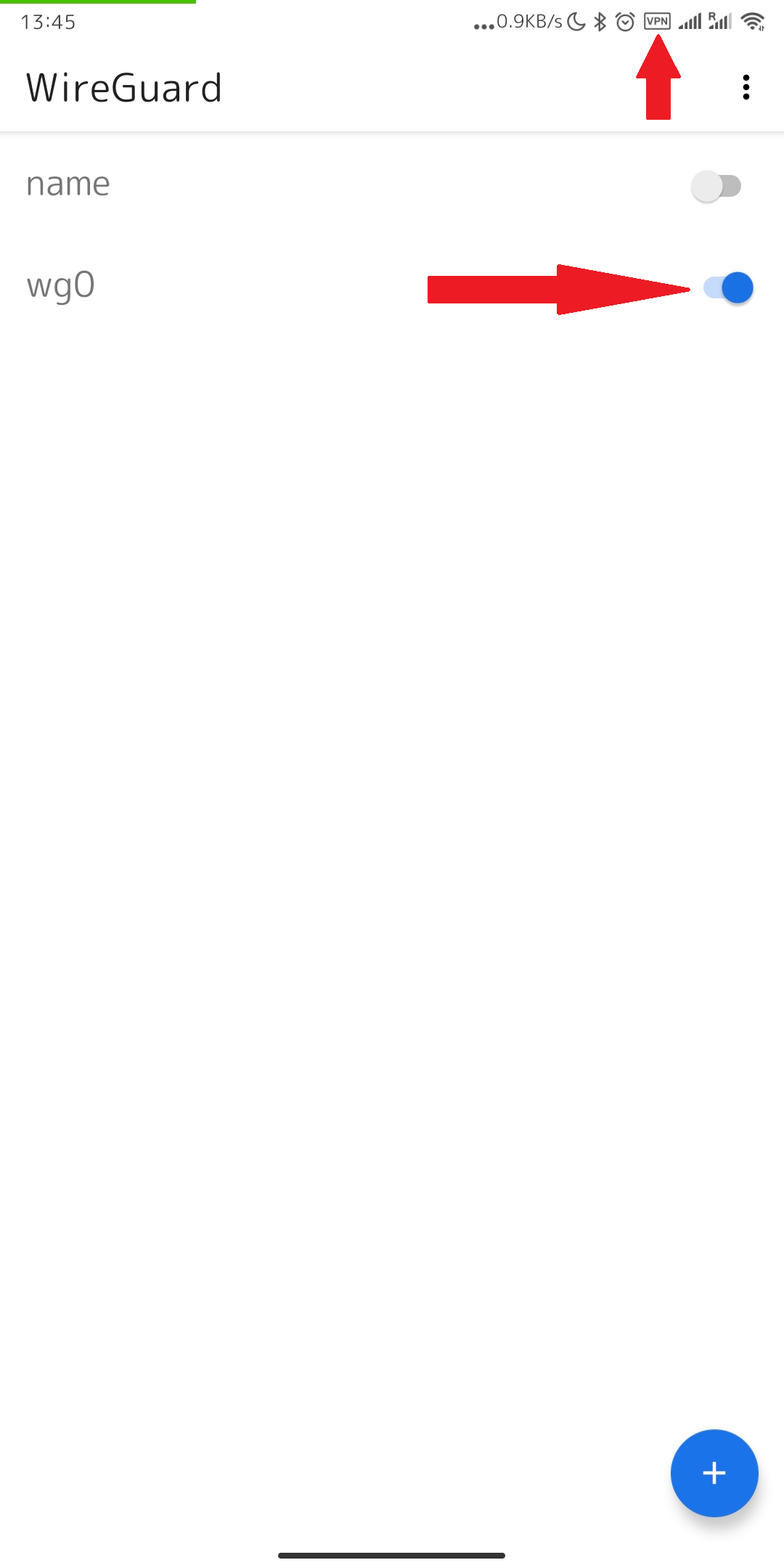
Set Up the WireGuard Client on Android
Connect to your POT VPN on Android with the official WireGuard app. You can set it up by scanning a QR code or by importing a config file.
1. Install the app
Open the one-time link on your phone, tap Download client (Android), and install WireGuard from the Play Store. Then open the app.
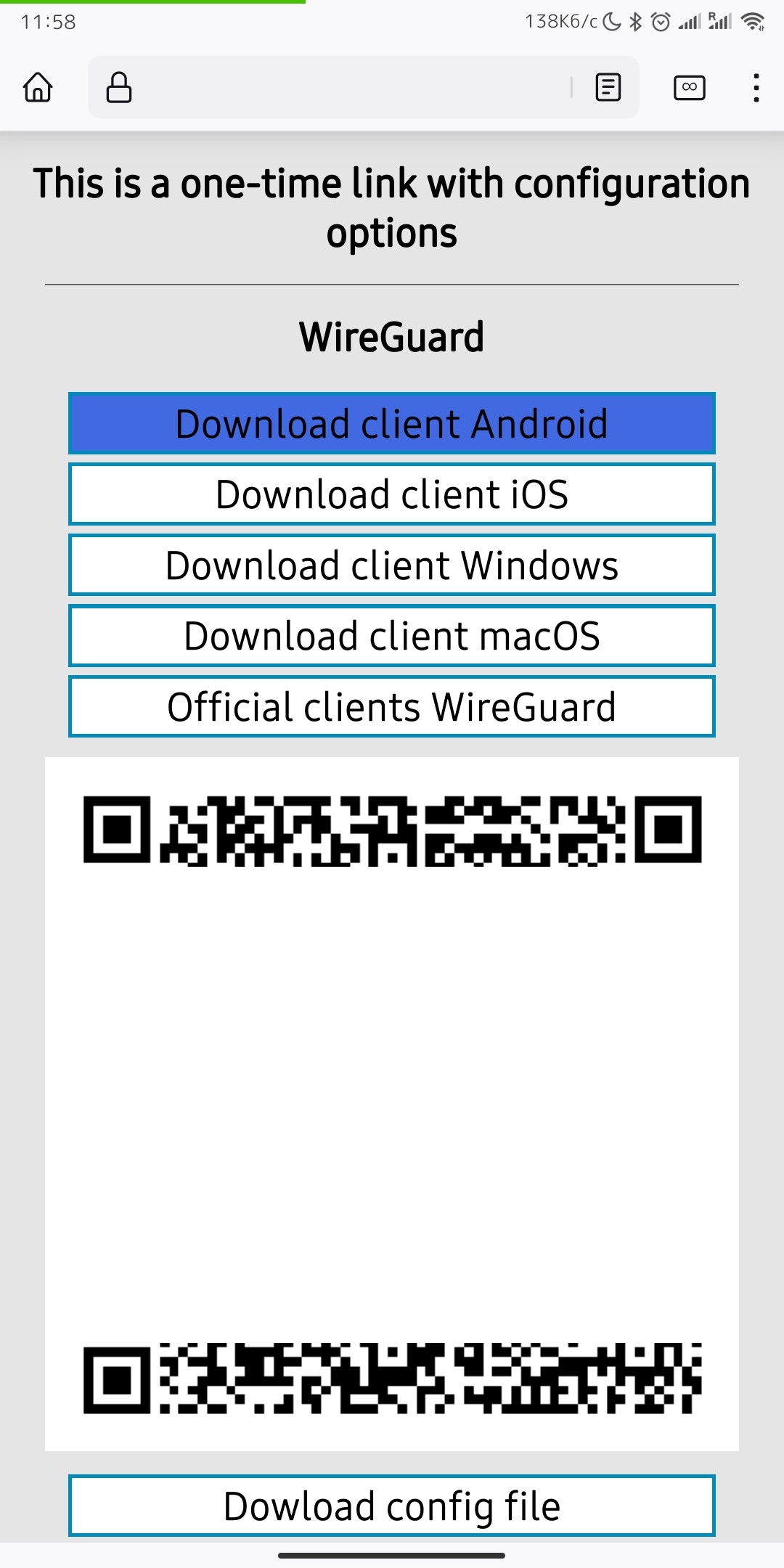
Method 1 — Scan the QR code (easiest)
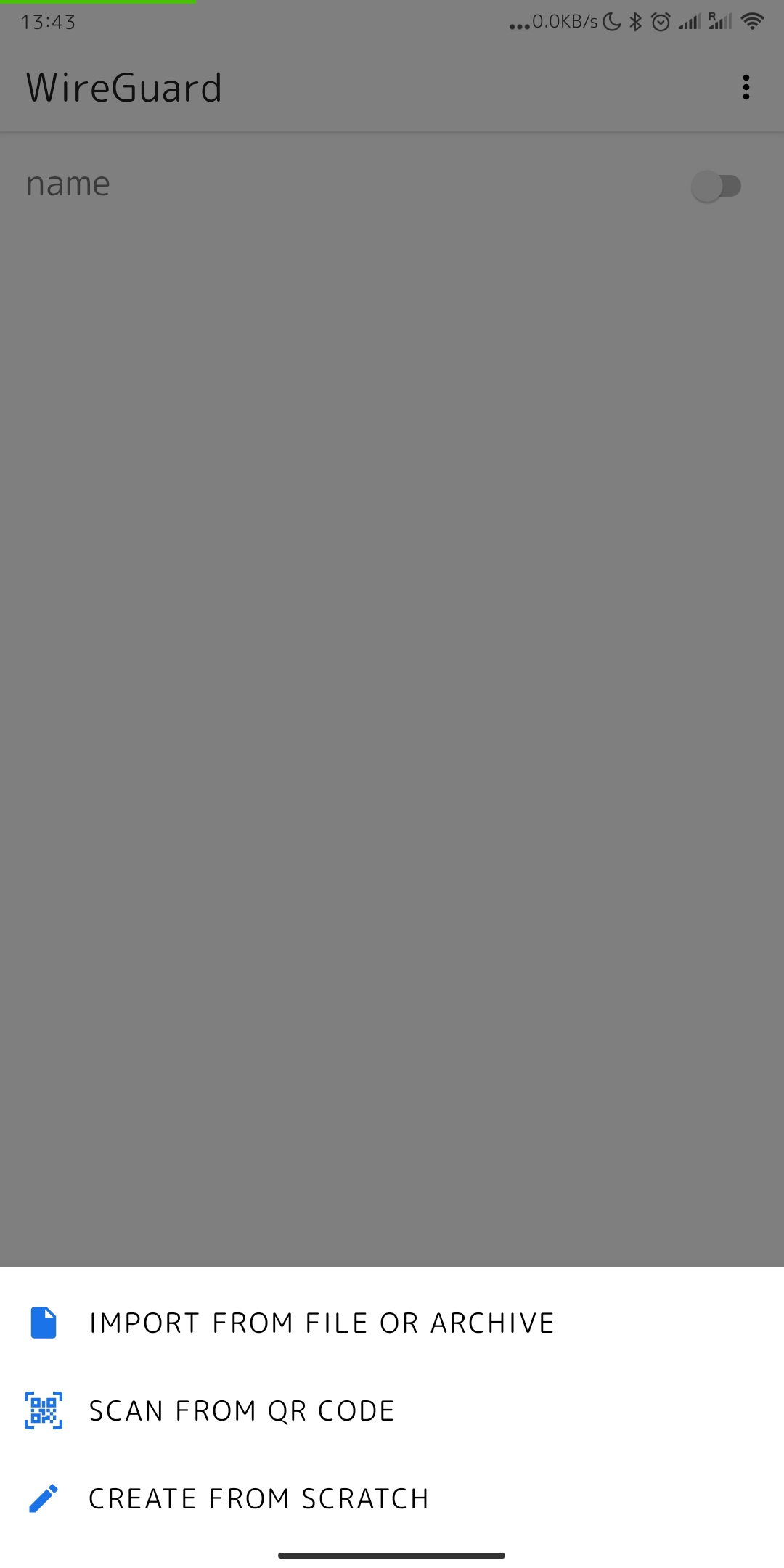
- Tap the + button, then Scan from QR code (allow camera access if asked).

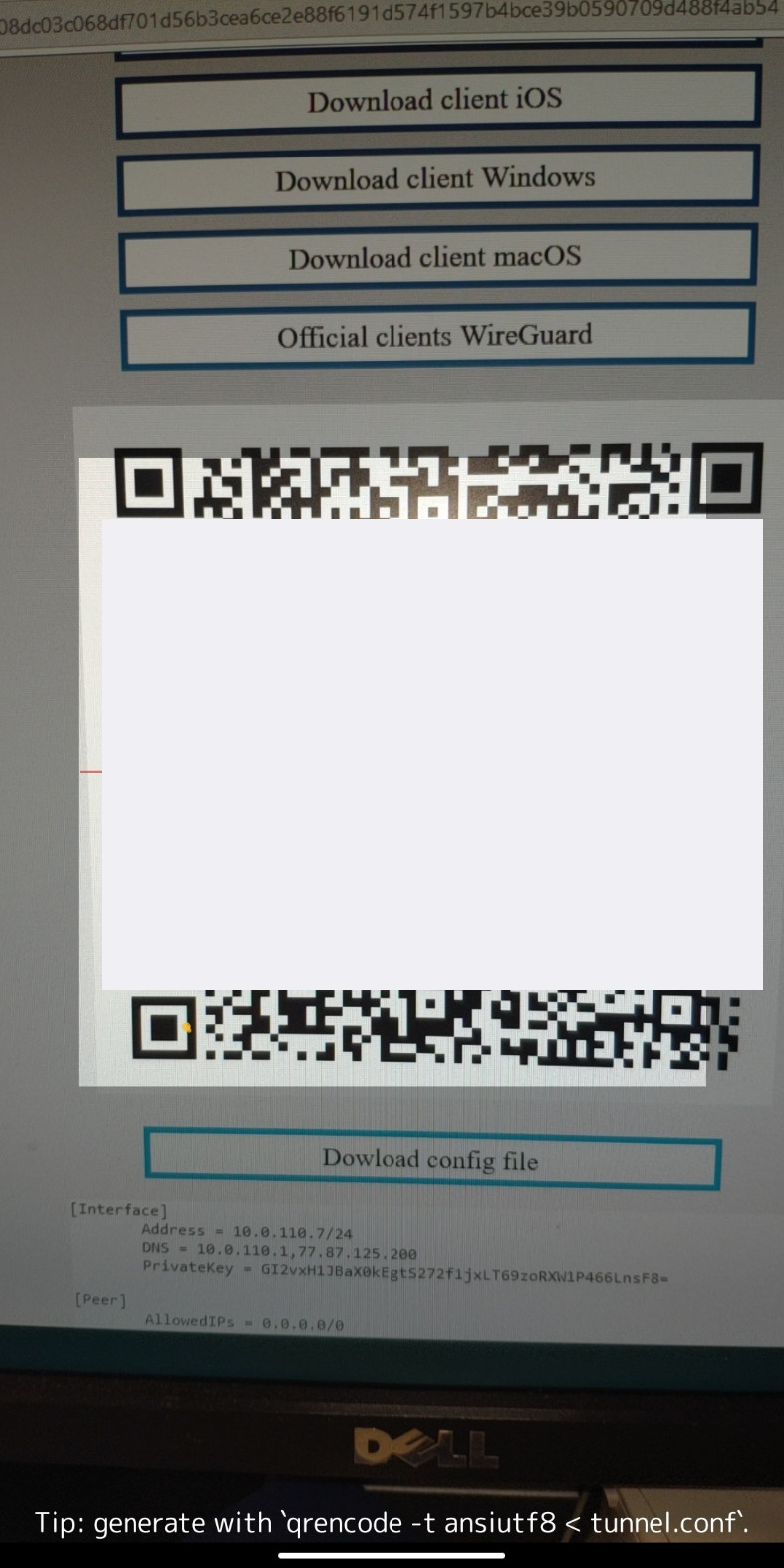
- Point your camera at the QR code on your VPN page.
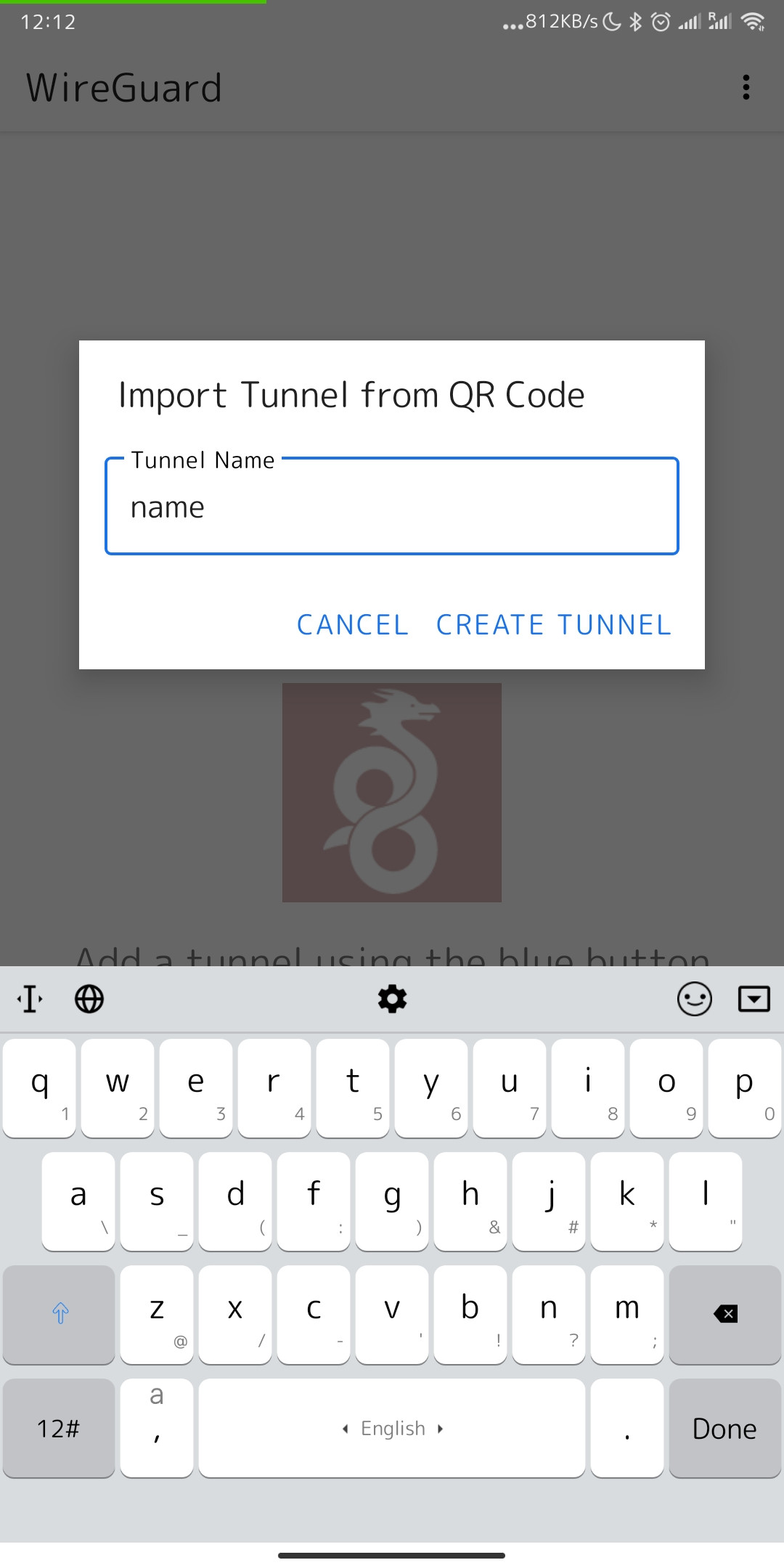
- Enter a name for the tunnel and tap Create tunnel.
- Flip the slider to activate it (approve the VPN connection if prompted).

Method 2 — Import a config file
- On your VPN page, tap Download config file.

- In WireGuard, tap + → Import from file or archive and select the file.
- Flip the slider to activate the connection.