
Installing and Removing Mods with the Mod Manager
RuneScape: Dragonwilds mods run through UE4SS (the mod loader) and .pak files. Your panel’s Mod Manager handles all of this from one screen. Open it from your service page and pick an action from the drop-down.
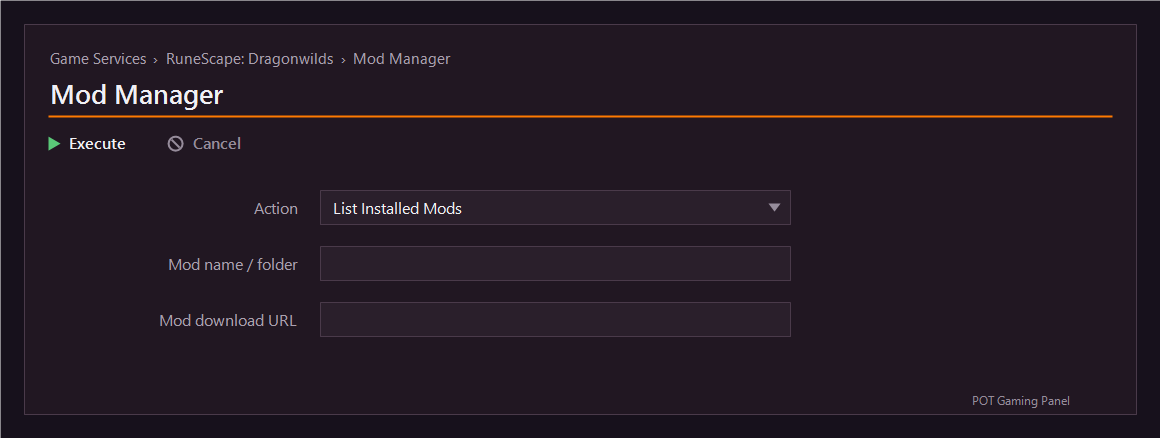
Step 1 – Install the mod loader (UE4SS)
Choose Install or Update UE4SS and press Execute. This is the base that most mods need, so install it first, then restart the server so it loads.
Adding a mod
Select Add Mod (from URL), put a name in the Mod name field, paste a direct download link to the mod’s .zip or .pak into the Mod URL field, then press Execute.
Most Dragonwilds mods are hosted on Nexus Mods. Nexus does not let servers download files automatically, so either paste a direct file link, or – if you already have the file – upload it with File Manager and manage it from here.
Removing or listing mods
To remove a mod, choose Remove Mod and type its name. To see what is installed, choose List Installed Mods – the output lists every mod currently on the server. Restart the server after adding or removing mods so the change takes effect.
Note: mods are optional and community-made. Some are client-side only and will not affect a dedicated server, so check that a mod is meant for servers before installing it.