
Getting Your RuneScape: Dragonwilds Server Online
Every RuneScape: Dragonwilds server needs an Owner ID before it will start. The Owner ID is simply your in-game Player ID – it tells the server who the owner is and unlocks the in-game admin tools for you. Until it is filled in, the server will refuse to boot, so this is always the first thing to set up.
Step 1 – Find your Player ID in the game
- Launch RuneScape: Dragonwilds and open the Settings menu from the main screen.
- Look at the bottom-left corner of the Settings screen for My Player ID.
- Click the copy button next to it so the ID is on your clipboard.
Each player has a unique ID, and a server can only have one owner.
Step 2 – Enter it in your server panel
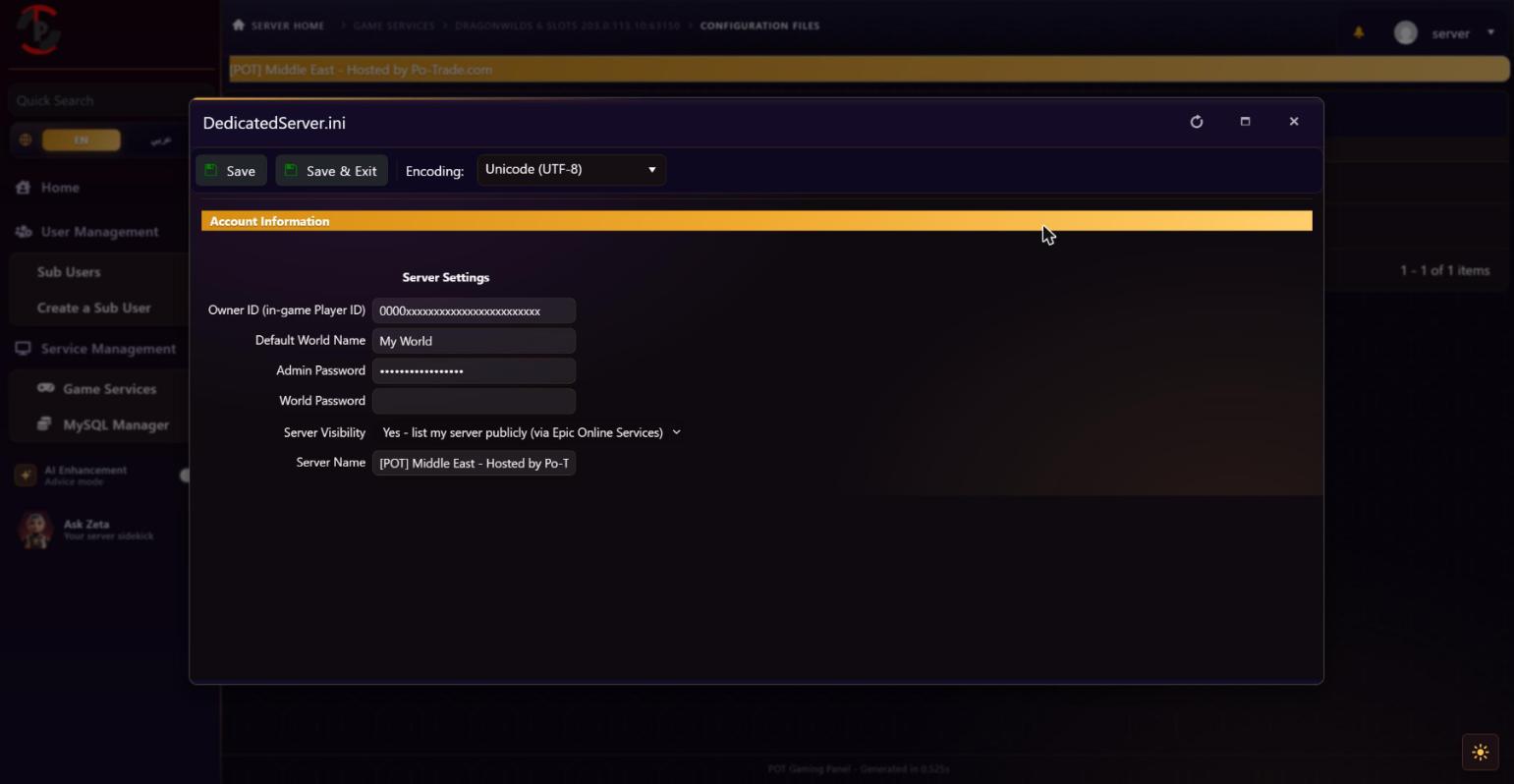
- From your service page, open Configuration Files (the “Server Settings” editor).
- Paste your Player ID into the Owner ID field.
- While you are here you can also set a Default World Name, an Admin Password, and choose whether the server is listed publicly.
- Click Save.
Step 3 – Start the server
Go back to the service home page and press Start. With a valid Owner ID saved, the server boots and creates your world. Give it a minute, then join from the game’s Worlds screen.
Tip: if the server will not start, the most common cause is a missing or mistyped Owner ID – make sure the value in the panel matches the one shown in-game exactly.