
Backing Up, Restoring and Importing Worlds on Your Dragonwilds Server
Your worlds live on the server, so it is worth knowing how to protect and move them. Your Dragonwilds panel gives you three one-click tools for this: Backup Worlds & Config, Restore Backup, and Import Save (from another server). This guide covers all three.
Creating a backup
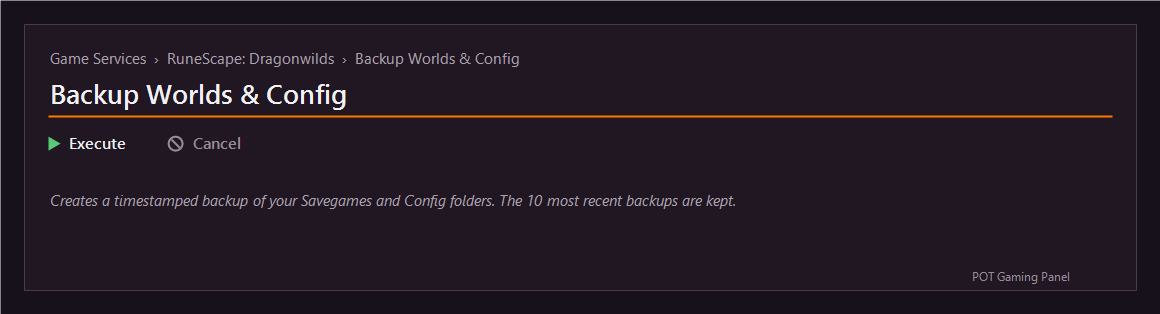
Open Backup Worlds & Config from your service page and press Execute. A timestamped copy of every world (plus your server settings) is saved on the server. The most recent backups are kept automatically, and you can run this any time – we recommend doing it before any big change or update.
Restoring a backup
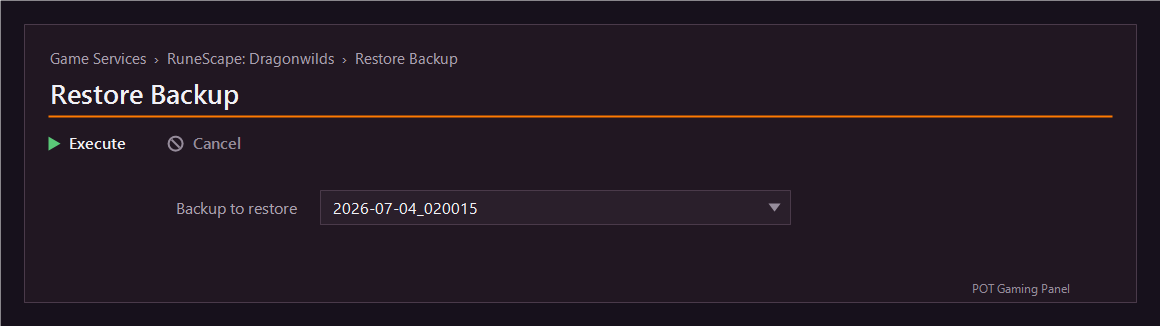
Open Restore Backup, choose the backup you want from the drop-down list, and press Execute. The server stops, your current worlds are replaced with the chosen backup, and you can start the server again afterwards.
Bringing in a world from another server
Moved from another host, or want to upload a world you already have? Use Import Save (from another server):
- Open File Manager and go into the imports folder.
- Upload your .sav file (or a .zip that contains it).
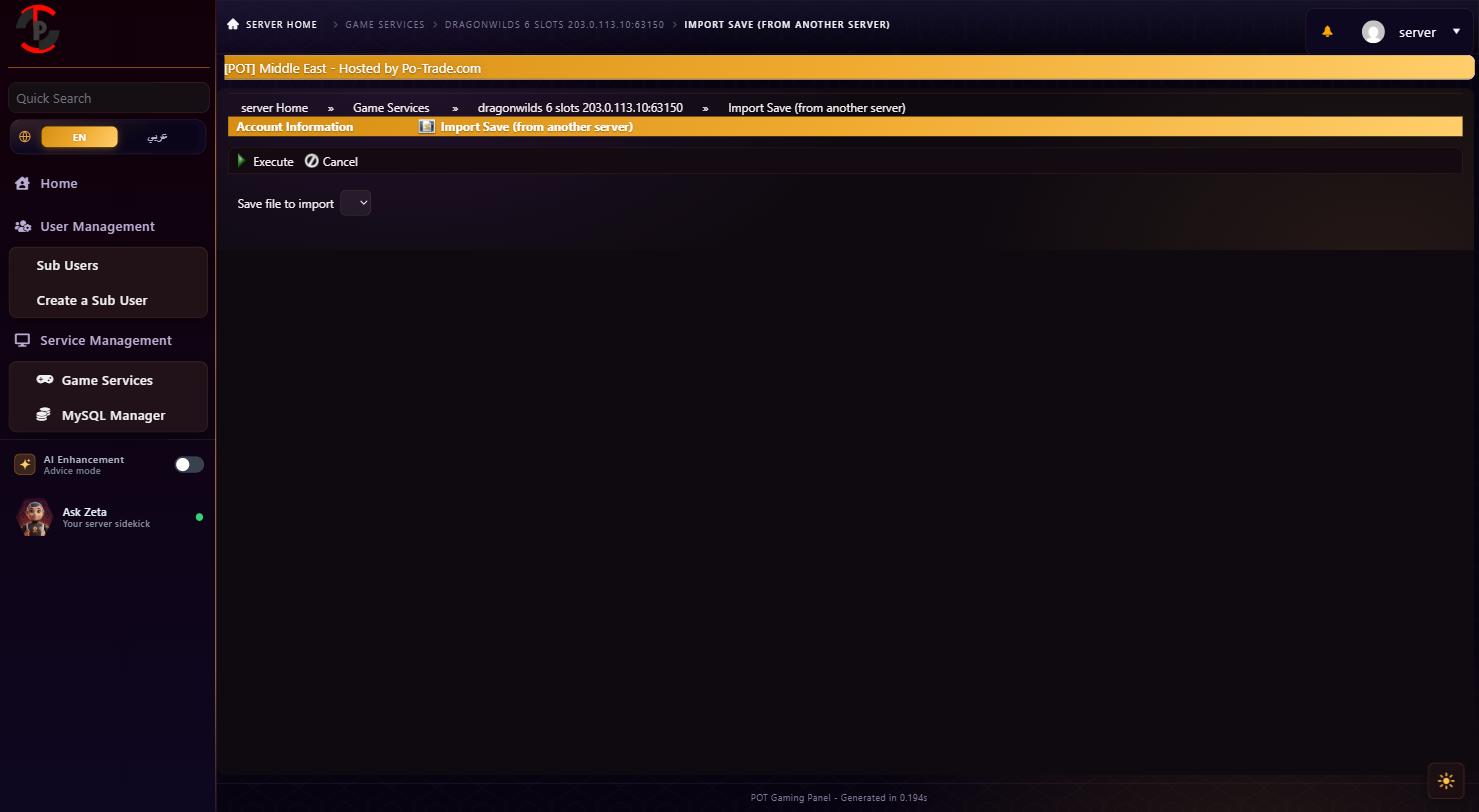
- Open Import Save (from another server), pick your file from the drop-down, and press Execute.
Important: do not rename the save file – the world name is taken from the file name, and it is case-sensitive when you look for it on the Worlds screen. Start the server after importing, then find your world in the list.