
Enable Remote Desktop (RDP) on Windows Server 2019/2022
Remote Desktop (RDP) lets you connect to your Windows server with a full graphical desktop. It's disabled by default on Windows Server 2019/2022 — here's how to turn it on.
Enable RDP
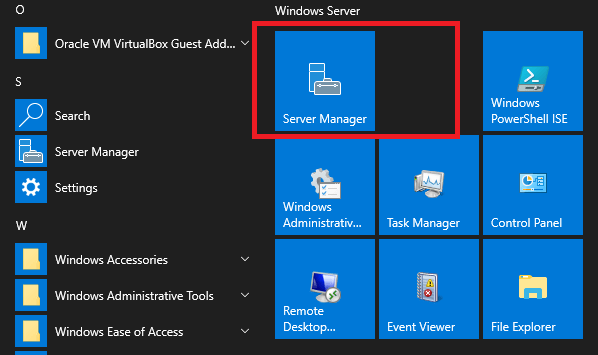
- Open Server Manager from the Start menu.
- Click Local Server on the left.
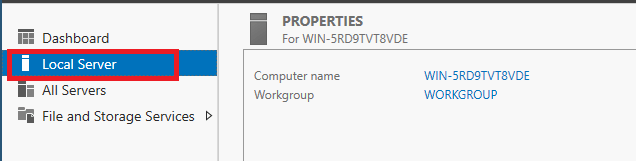
- Click the Remote Desktop "Disabled" link.

- Select Allow remote connections to this computer.
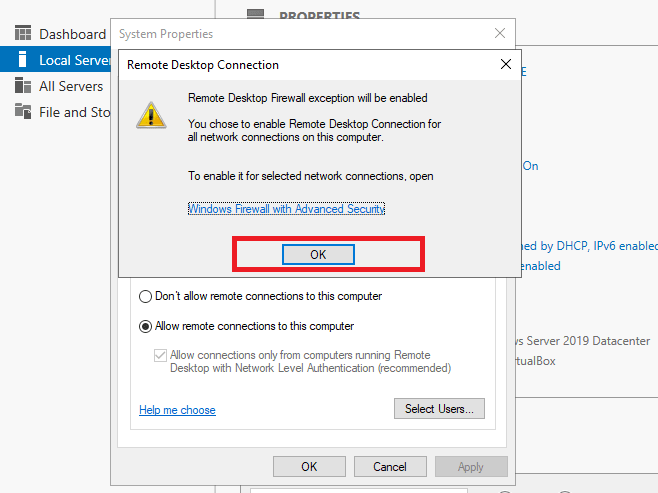
- Accept the firewall-exception prompt, then click Select Users to add who can connect.
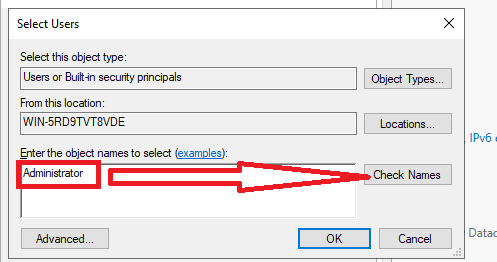
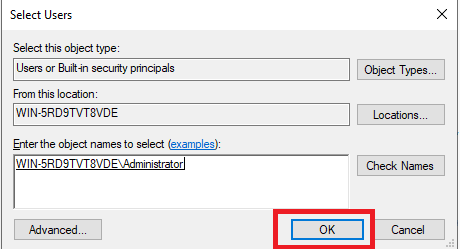
- Enter the username, click Check Names, then OK.
- The user now appears in the allowed list.
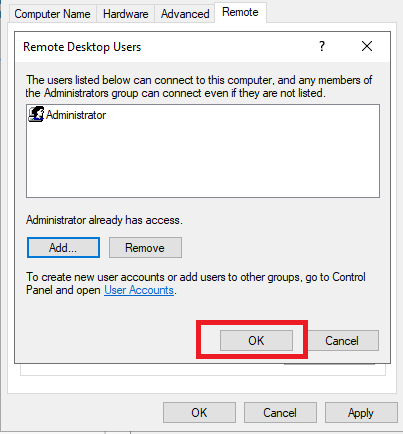
You can now connect to your server on port 3389 with any RDP client.