
Share Files and Folders in Cloud Office
Cloud Office gives you a few ways to share files and folders. Here's how each works and when to use it.
Share with a link
The simplest way to share is a public link: you create it, send it to someone, and they open it in their browser — no account needed. They can view (and, if you allow it, edit) the shared file or folder.
Link recipients are anonymous ("guest"), so they can't see comments, the activity log, or re-share (other than passing the link on). A link is best for a quick one-time share rather than ongoing collaboration.
To create one, click the + next to Share link (or copy an existing link with the clipboard icon). You can also type a recipient's email and choose the mail option to send the link directly — that way you know who you sent it to.
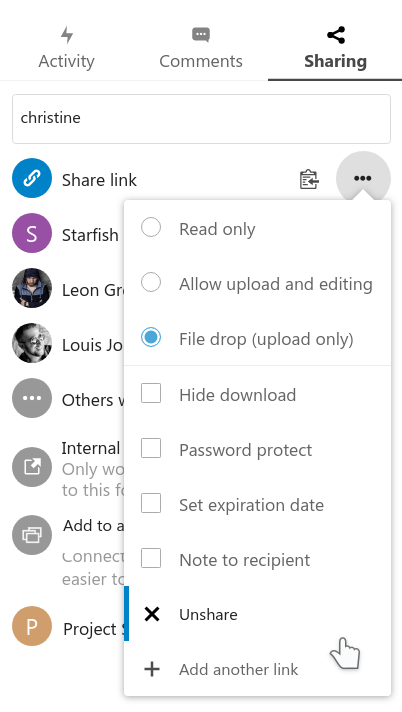
Link options
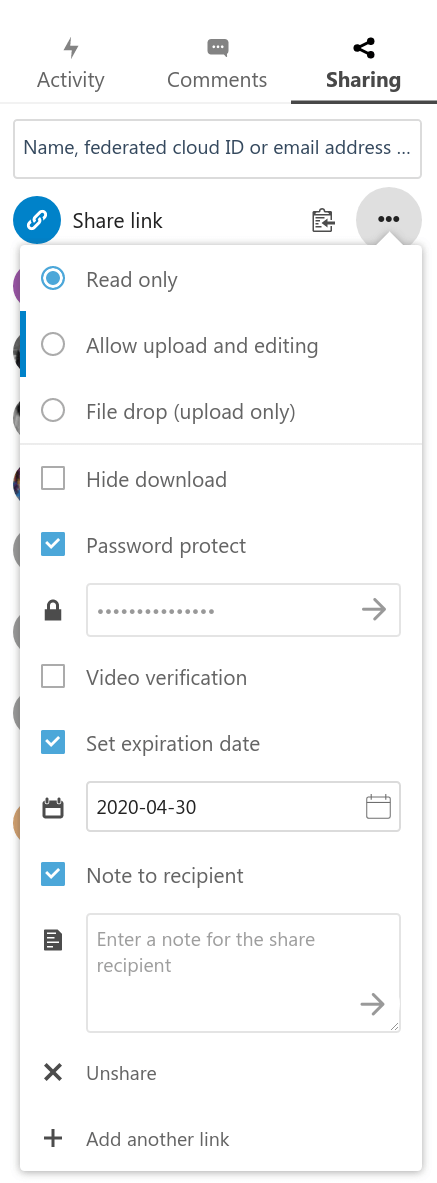
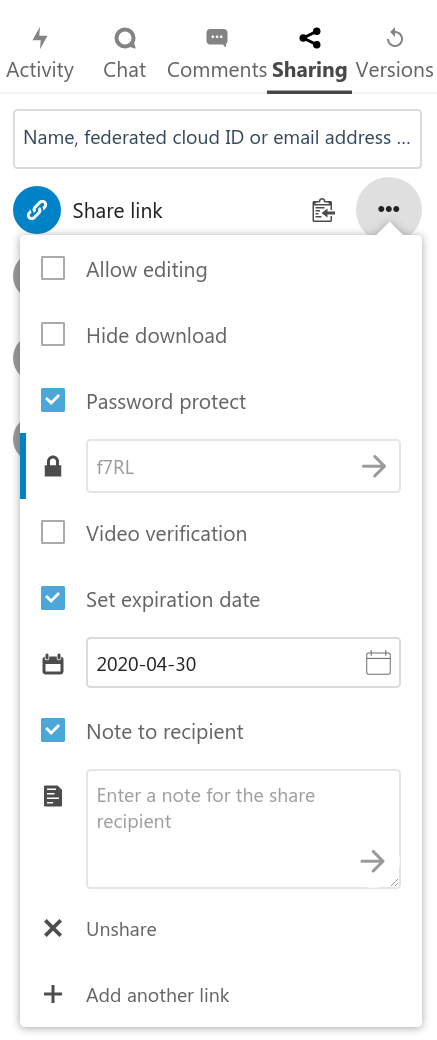
For a folder, you can allow upload/editing, or hide the contents so people can only upload (duplicate filenames are renamed automatically). For a file, you have the options shown below. You can also set a password and an expiry date.
Share with a user, group, or chat room
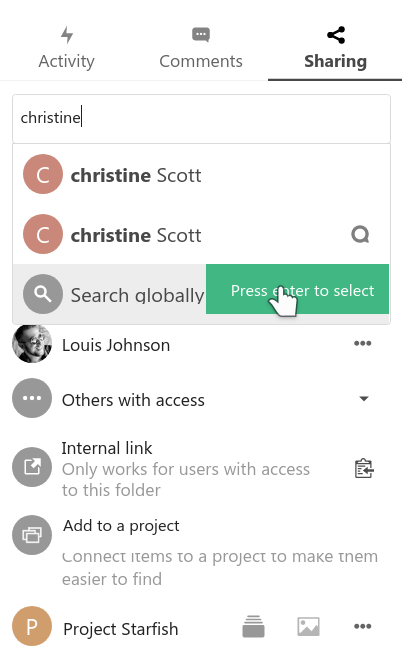
Instead of a public link, type a person's name and choose the option with no icon to share directly with them. You can also share with a group or a Talk chat room.
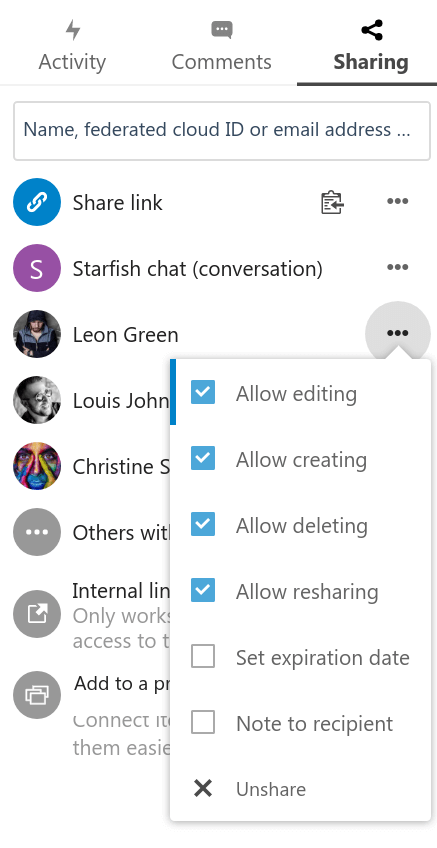
With a user or group share, both sides can see who did what in the activity view and add comments, and the recipient can re-share (you'll see who they shared with).
Which to choose
- Public link — no account needed, anonymous; can't comment, see activity, or re-share. Best for quick one-off sharing.
- User/group share — needs an account; full features (comments, activity, re-sharing). Best for ongoing collaboration.