
Connect Claude or ChatGPT to Your POT Account (Step by Step)

With the POT AI Connector, the AI assistant you already use can look up your POT account for you: your services, invoices, tickets, websites and game servers. You ask in your own words, and it reads the answer straight from your account. This guide takes you from zero to your first answer, one screen at a time. It takes about 5 minutes.
Example conversation.
Before you begin
- You own the POT account (the main account holder, not an invited user).
- You have an active POT service (active, pending or suspended).
- Two-factor authentication (2FA) is on for your client-area login (step 2 below).
- You are in the beta: the AI Connector is an invitation-only beta (step 1 below).
You also need a Claude (claude.ai) or ChatGPT (chatgpt.com) account that lets you add a custom connector. These are the AI apps we have tested and approved so far. Using ChatGPT? Do Part A, then follow Part E instead of Parts B to D.
Part A — Get ready in the client area
1 Ask to join the beta
Open a ticket from the client area (Support → Open Ticket) and write: “Please add my account to the AI Connector beta.” We reply in the ticket as soon as your account is enabled.
2 Turn on two-factor authentication (2FA)
Open Account → Security Settings and switch on Two-Factor Authentication. Scan the QR code with an authenticator app on your phone, such as Google Authenticator or Microsoft Authenticator, then enter the 6-digit code it shows.
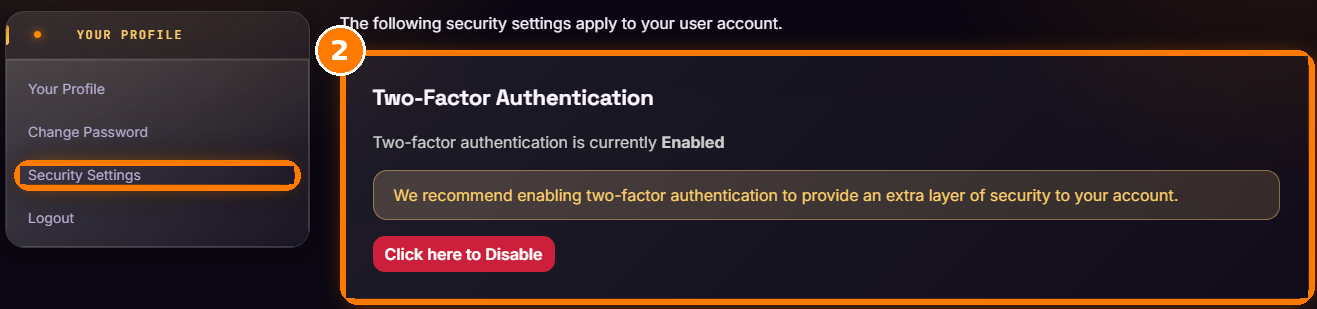
WHMCS shows a backup code once. Save it somewhere safe: it is your way back in if you lose your phone. POT never sends 2FA codes by email or SMS.
Part B — Add POT to Claude
3 Open Claude’s connectors
Go to claude.ai and click Customize in the left menu. Open the Connectors tab and choose Yours to see the connectors you have added.
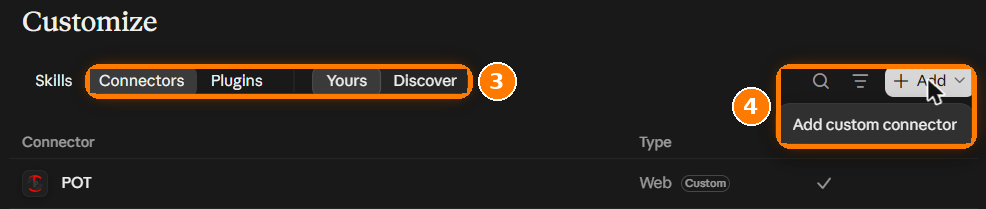
4 Add POT as a custom connector
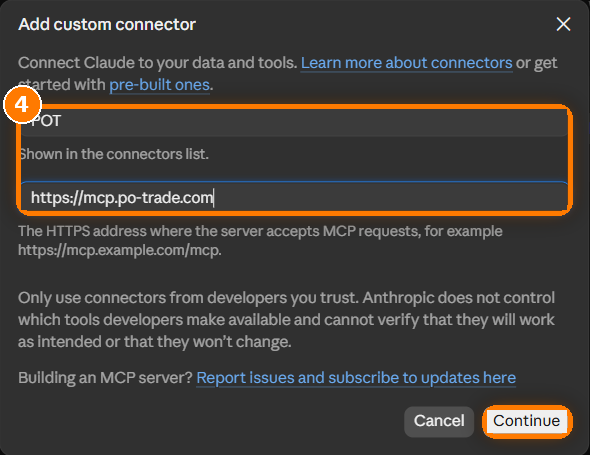
Click + Add, then Add custom connector. Type POT in Name, paste this address into MCP server URL, and click Continue:
https://mcp.po-trade.com
Part C — Sign in and allow access
When you connect, POT opens its sign-in in a new browser tab or window and walks you through a few short screens. The bar at the top always shows where you are:
| 1 Sign in email + password | 2 Security code from your app | 3 Confirm it's you | 4 Allow access you decide |
5 Click Connect
POT now appears in your connectors list. Next to POT, click Connect.

6 Sign in to your POT account
Enter your client-area email and password and click Continue. Leave Remember Me unticked, and finish everything in this same window: the sign-in only completes in the window it started in.
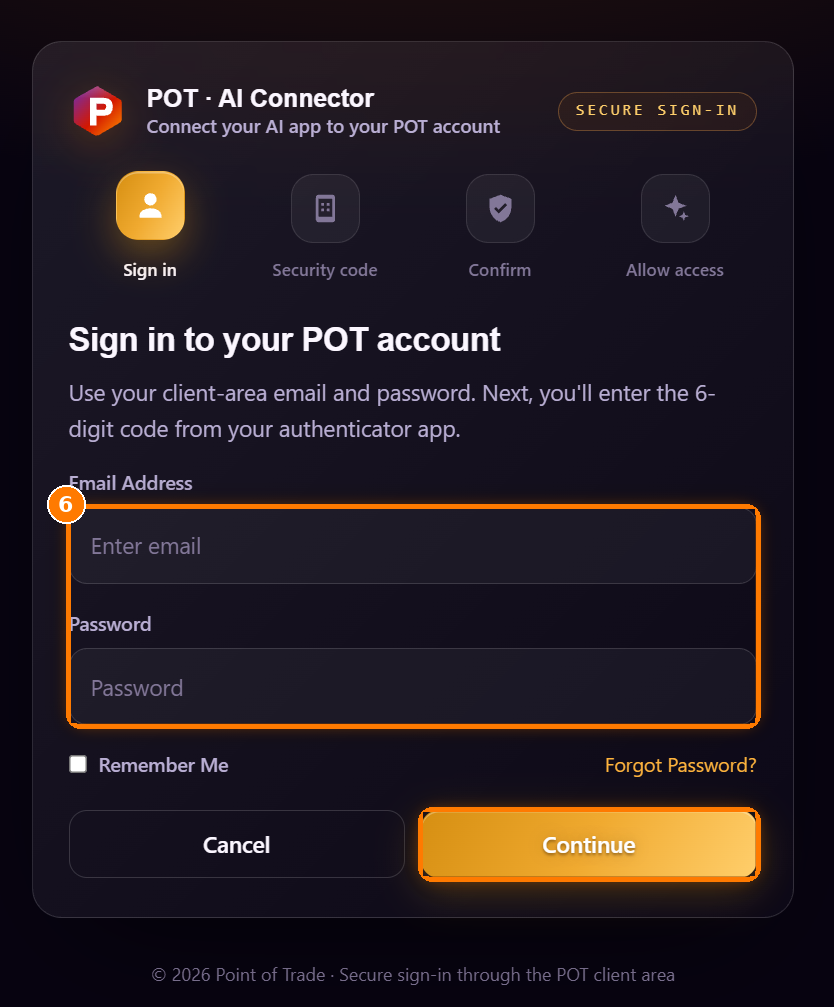
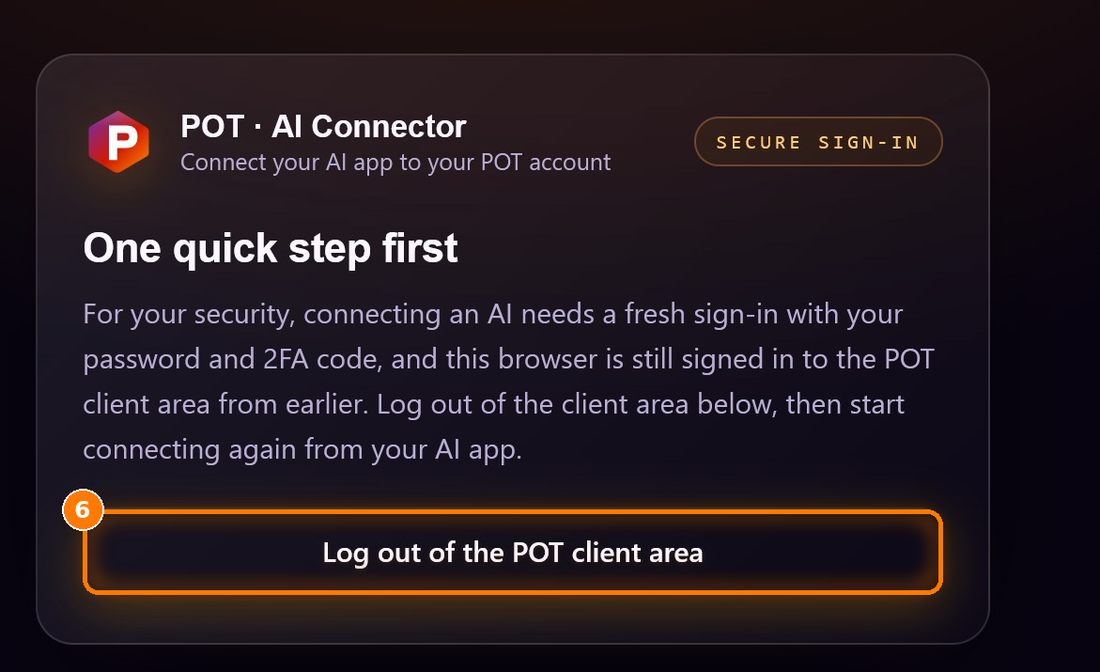
For your security, every connection needs a fresh sign-in with your password and 2FA code. If your browser is still signed in to the client area from earlier, POT shows this page. Click Log out of the POT client area, go back to Claude and click Connect again.
7 Enter your security code
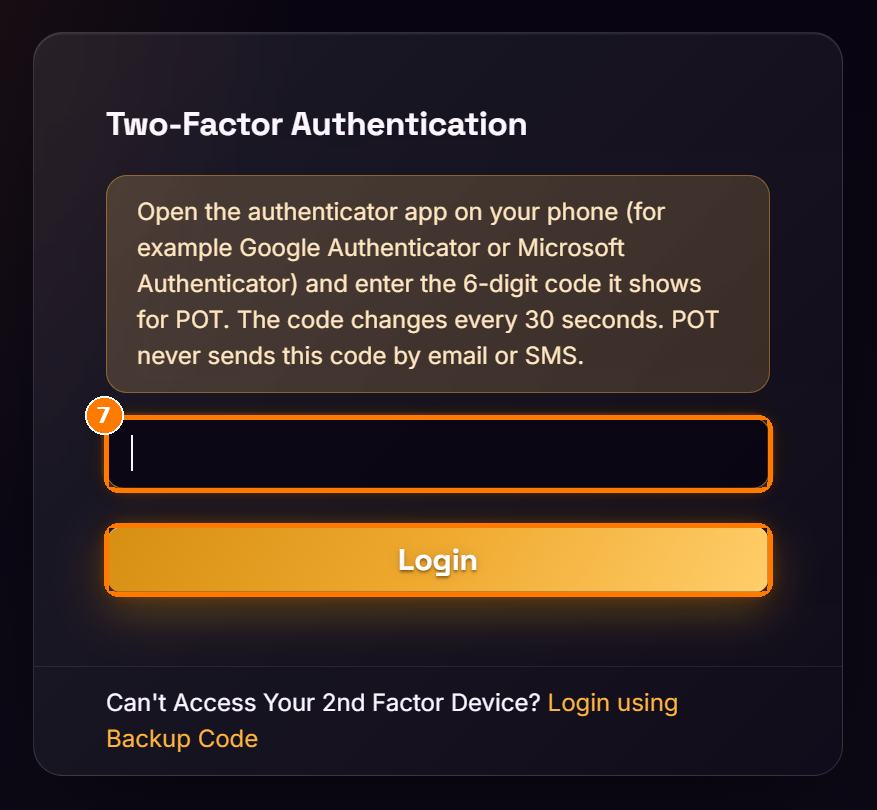
The Two-Factor Authentication page opens. Open your authenticator app, type the 6-digit code it shows for POT right now and click Login. The code changes every 30 seconds. Lost your phone? Use Login using Backup Code.
8 Confirm it’s you
The first time you connect, POT shows which basic details the connector uses to recognise your account. Click Continue. If you have connected before, POT skips this screen.
9 Allow access
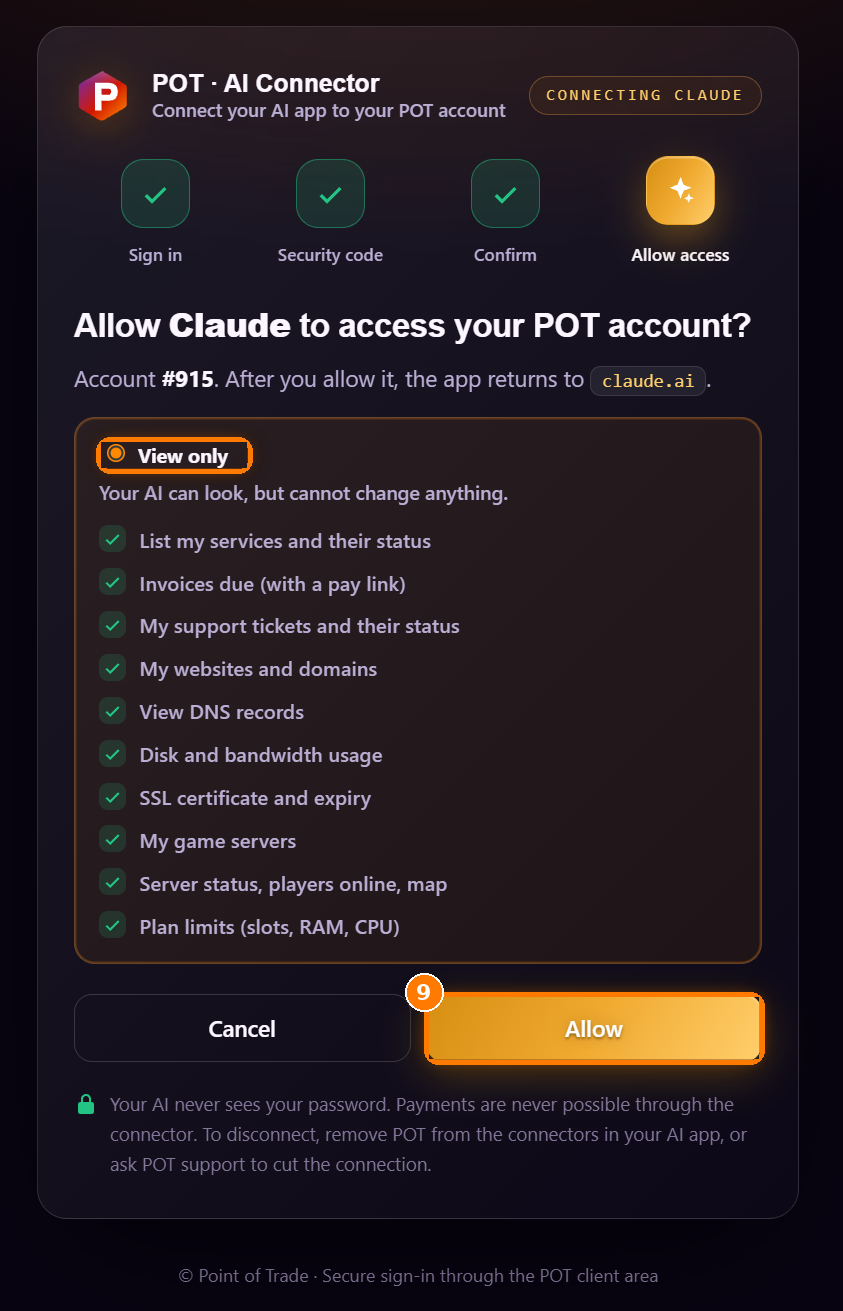
This is POT’s own page. It names the app (Claude or ChatGPT), shows your account number and lists exactly what your AI will be able to read. Keep View only and click Allow. You return to your AI app automatically.
Part D — Ask your first question
10 Start a new chat and ask
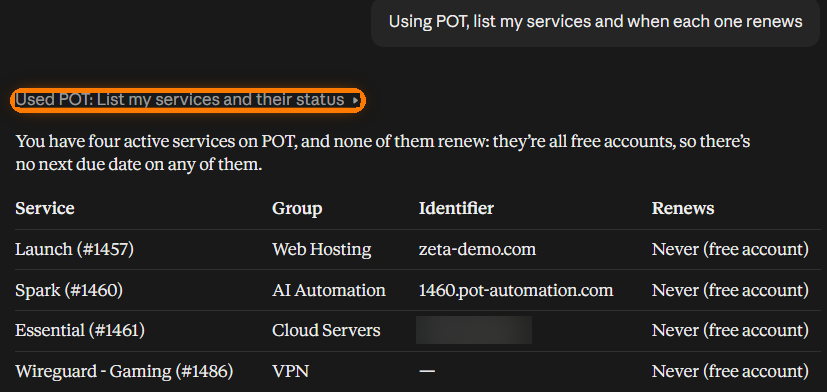
Open a new chat in Claude and ask something about your account. Start your question with “Using POT” the first time, so Claude knows where to look. Before it reads your account, Claude asks your permission: click Allow once, or Always allow if you don’t want to be asked again for that kind of question.

Ideas to try:
“Using POT, list my services and when each one renews” “Which of my domains have SSL expiring in the next 30 days?” “Show the DNS records for my domain” “How much disk space is my website using against my plan?” “Is anyone playing on my game server right now?” “Are any of my support tickets waiting for my reply?” “Do I have unpaid invoices? Give me the pay link.”
Check under Customize → Connectors that POT shows as connected, then ask again starting with “Using POT”.
11 Optional: choose when Claude may use POT
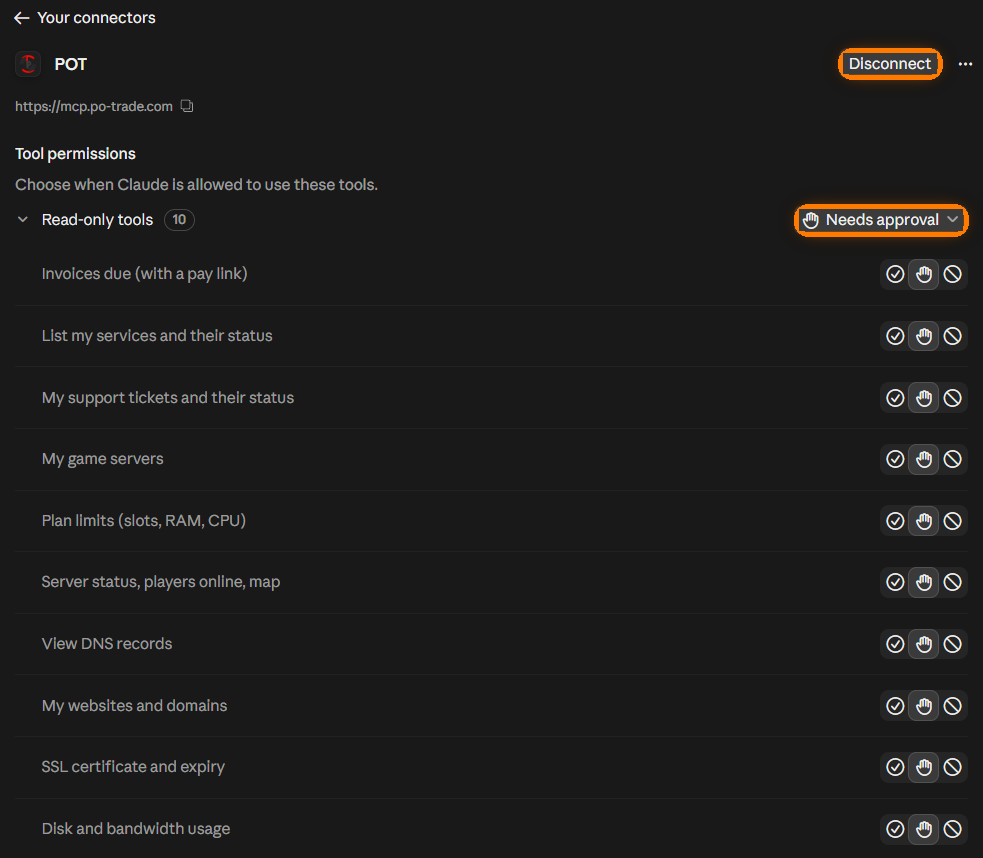
In Customize → Connectors, click POT to see its 10 read-only abilities. Under Tool permissions you decide whether Claude must ask first (Needs approval) or may look things up on its own. This page also has the Disconnect button.
Part E — Using ChatGPT instead
ChatGPT uses the same POT sign-in and gets the same read-only access. Do Part A first (beta and 2FA), then:
12 Open Plugins and add a custom MCP server
In ChatGPT, click Plugins in the left menu. At the top right, click Add, then Add custom MCP server.

13 Fill in the form
Type POT in Name. Under Connection, keep Server URL and paste this address:
https://mcp.po-trade.com
Keep Authentication on OAuth and leave Advanced OAuth settings as they are. Tick I understand and want to continue and click Create as a plugin.
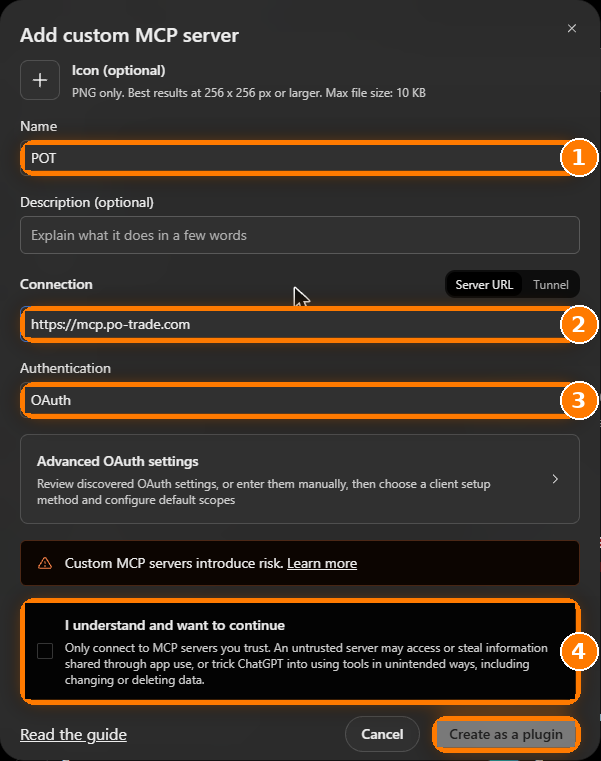
ChatGPT shows this notice for every custom server. The POT connector is read-only: it cannot change, delete or pay for anything, and it only answers for the account that signed in.
14 Sign in, then ask
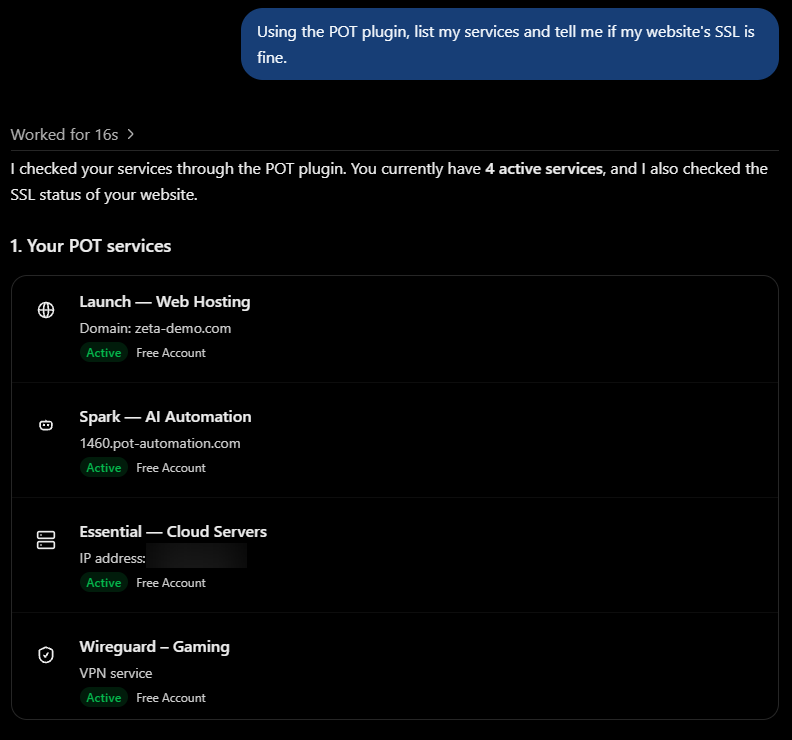
ChatGPT opens POT’s sign-in. Follow the same screens as steps 6 to 9 (password, 6-digit code, confirm, Allow); the Allow page names ChatGPT. Then open a new chat and start with “Using the POT plugin”, for example: Using the POT plugin, list my services and tell me if my website’s SSL is fine.
ChatGPT’s permission for POT starts at Allow low-risk tools, so read-only lookups normally run without asking each time. You can change it under Settings → Plugins → POT → Permission.
Your ChatGPT plan or workspace may not allow custom servers yet. Open a ticket and we will help.
What your AI can and can’t do
- A fresh password + 2FA sign-in every time you connect, and you approve access yourself.
- Each connection is registered to your account with your own signed sign-in, so POT’s systems only answer for connections you approved.
- Your account is re-checked about every 10 minutes while the connection is in use. If 2FA is switched off or the account no longer qualifies, the connection ends by itself.
- Black Manta, our security engine, watches every request.
If something goes wrong
POT always tells you what happened on the page itself. Find its title below:
Disconnect any time
In Claude, open Customize → Connectors, click POT and click Disconnect. In ChatGPT, open Settings → Plugins, click POT and click Uninstall. You can also ask us in a ticket to cut the connection. To connect again later, repeat Part C: you will sign in fresh with your password and 2FA code.
Want the full picture? See the AI Connector page.