First-Time Setup for Your Last Oasis Server
Last Oasis servers need a Registration Key from your Realm account before they'll run. This guide walks you through getting the key, linking it, configuring your realm, and connecting.
Good to know: a Registration ID is required for the server to work, there can be only one server per registration, and you should restart the server from the Game Panel after changing settings.
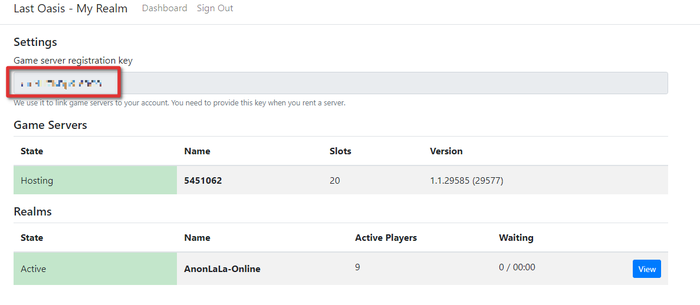
1. Find your registration key
Go to myrealm.lastoasis.gg and log in with your Steam account.
Important: you must have launched Last Oasis on Steam at least once before this works.
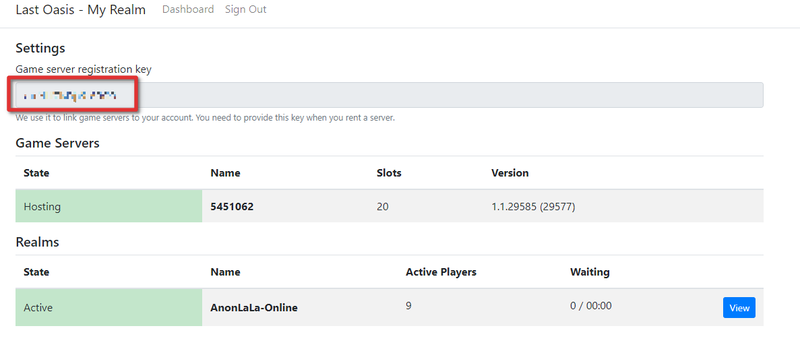
On first login you'll see only the Registration Key — there won't be any game servers or realms yet.
2. Link the key to your server
- Open the Game Panel and Stop your server.
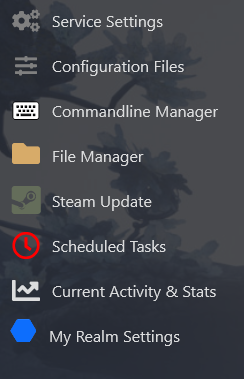
- On your server page, click Commandline Manager in the side menu.
- Click Selected.
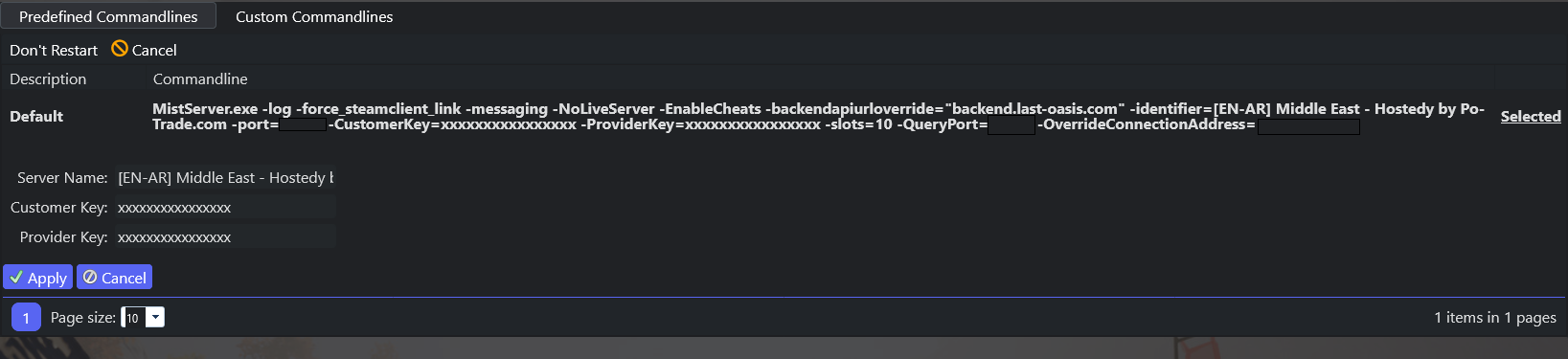
- Copy the Customer Key and Provider Key from myrealm.lastoasis.gg, paste them into the matching fields, and click Apply.
- Restart the server. Your Realm account is now linked.
3. Configure your realm
- After restarting, wait a little while for the server to authenticate.
- Click the interface button and log in — you'll now be able to create a realm.
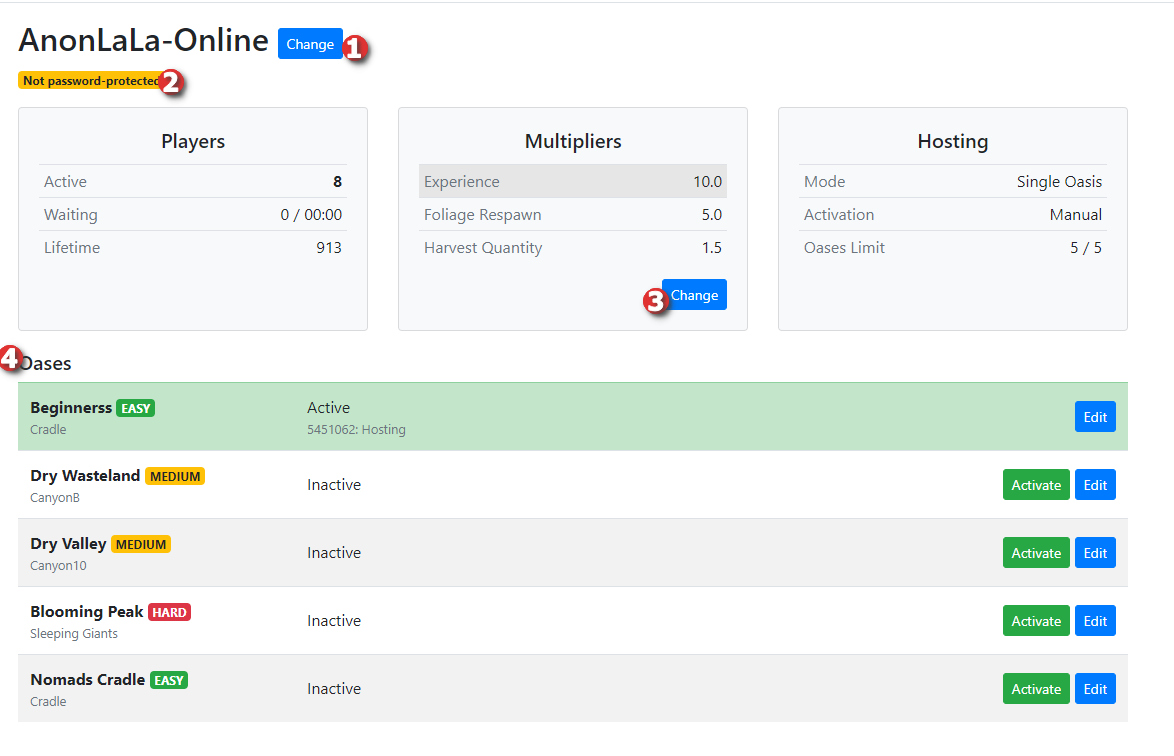
From your realm you can change the server name, password, multipliers, and Oasis (only one can be active at a time). Make your changes, then restart the server.
4. Connect to your server
- Open Steam and launch Last Oasis.
- Click Play on Community.
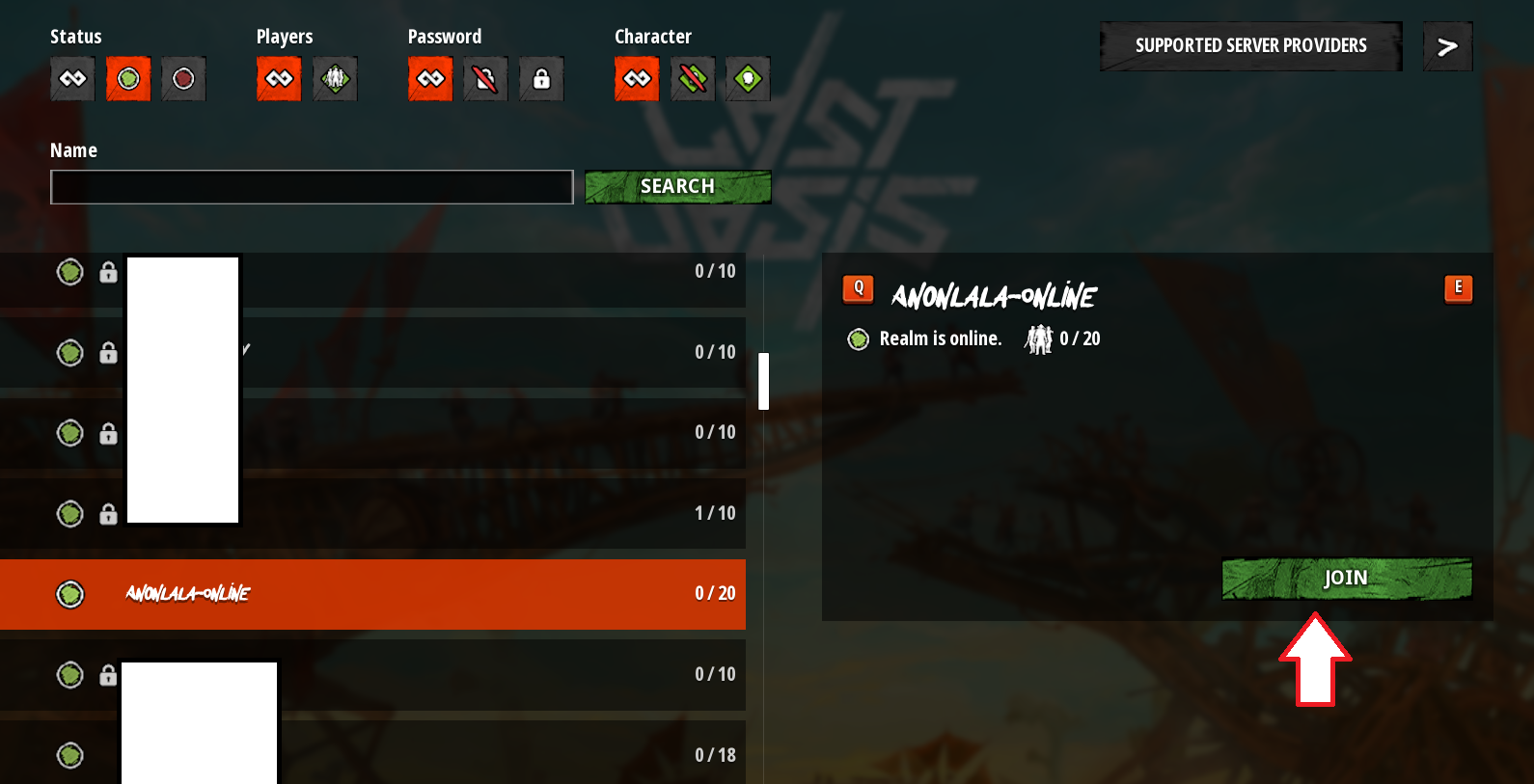
- Search for your server name (adjust the password filter if you set a password), then click Join.